

UK Property Income
This guide explains how to set up and manage a UK property business in My Tax Digital, including adjustable summaries and annual adjustments & allowances.
1. The UK Property Income Hub
Prerequisites
The UK Property section appears in My Tax Digital automatically once UK property is registered as one of your income sources with HMRC. It will not appear if you have only completed ITSA auth for self-employment. To check or add it, log in to your HMRC online services account, go to Income Tax > View and manage Making Tax Digital for Income Tax, and check your registered income sources. See Troubleshooting: Income Sources Not Appearing for full steps.
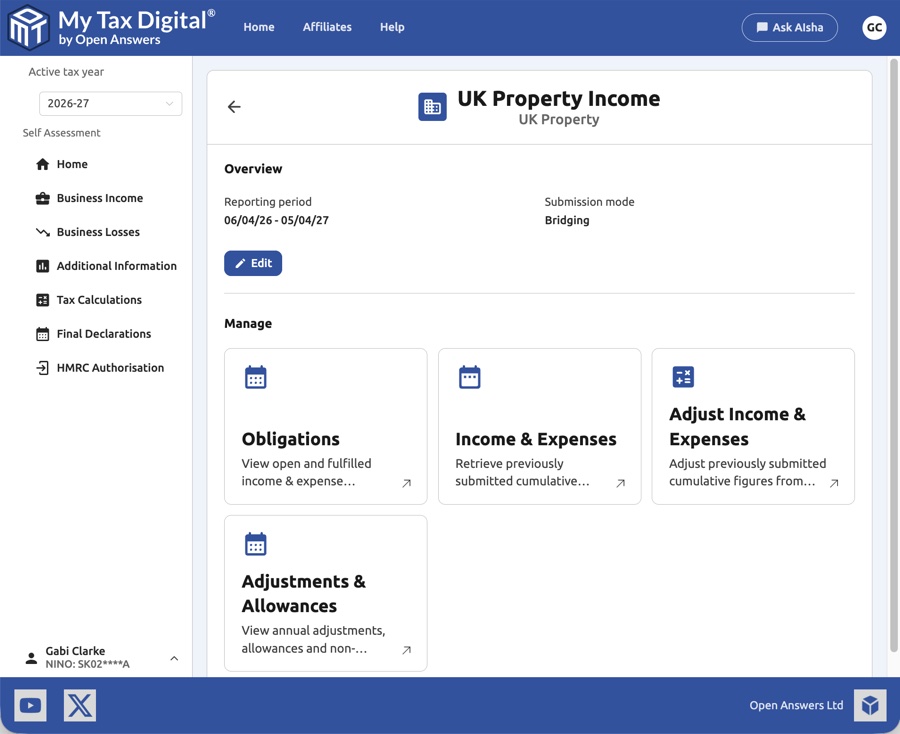
The UK Property Income screen is the main management hub for a UK property business. From here you can navigate to all the submission areas for the business.
| Card | Description |
|---|---|
| Obligations | View open and fulfilled income & expense submission periods. |
| Income & Expenses | Retrieve and review previously submitted cumulative income and expense figures. |
| Adjust Income & Expenses | Submit or update an Adjustable Summary — a HMRC-required end-of-year adjustment to your cumulative figures. |
| Adjustments & Allowances | Submit annual adjustments and capital allowances. |
The hub also shows the current Reporting period, Submission mode (Accounting or Bridging), and the income source's HMRC Business ID and Start date.
2. Income & Expenses
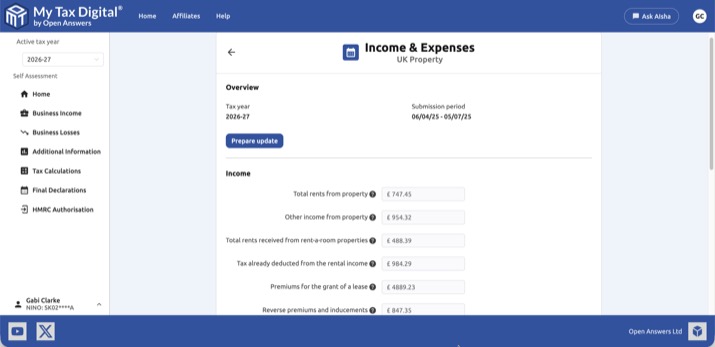
The Income & Expenses screen shows the cumulative income and expense figures submitted to HMRC for a given period. It updates after each quarterly submission.
2.1 Viewing Income & Expenses
Income
| Field | Description | SA105 |
|---|---|---|
| Total rents from property | Total rental income received from all properties in the period. | Box 20a |
| Other income from property | Other property income not included in total rents. | Box 20b |
| Total rents received from rent-a-room properties | Income from letting furnished accommodation in your own home under the Rent a Room scheme. | Box 20c |
| Tax already deducted from the rental income | Any UK tax withheld at source from the rental income. | Box 21 |
| Premiums for the grant of a lease | Taxable portion of premiums received for granting a lease. | Box 22 |
| Reverse premiums and inducements | Payments received from a landlord to induce you to take on a lease. | Box 23 |
Click Prepare update to submit figures for the current period.
Annual items not included above: Replacement of domestic items (SA105 Box 36) and other capital allowances are not part of the quarterly Income & Expenses figures. These are entered once a year under Adjustments & Allowances (see §5) instead — they will not appear on this screen, in the CSV/XLSX import templates, or in the Transactions category list.
2.2 Updating Income & Expenses — Accounting mode
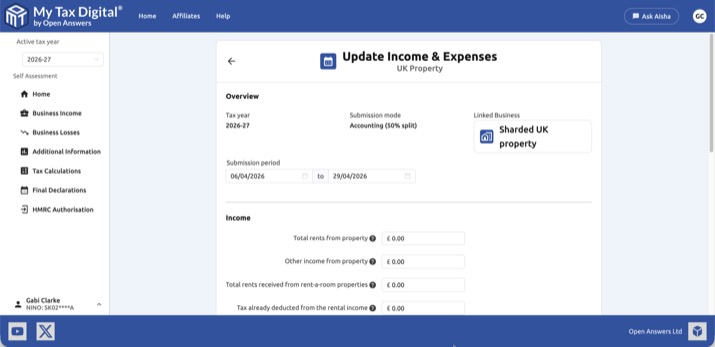
In Accounting mode, income fields are pre-filled from your linked business transactions. The submission mode shows Accounting (X% split) where X is the ownership percentage configured for this income source — this split is applied automatically only to figures pulled through from Transactions. If you type a figure directly into a field on this screen instead, enter your own share of it; it is submitted exactly as typed, with no split applied. Review the figures and click Submit.
In Accounting mode, your transactions are recorded in the linked business's Transactions section — not on this hub. To get there, click the business name in the left-hand sidebar or use the Linked Business button at the top of this screen.
2.3 Updating Income & Expenses — Bridging mode
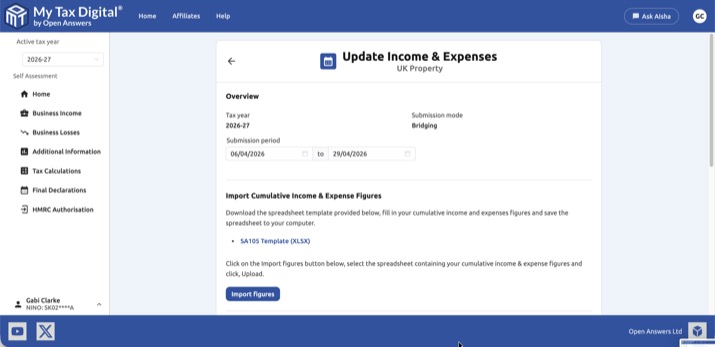
Import your cumulative figures from a spreadsheet as follows:
- Download the template below, populate your cumulative income and expense figures, and save the file.
Download example SA105 UK Property template (XLSX)
The importer reads your figures from the exact cell positions in this template — do not rename the sheet or add/remove rows or columns. If you build your own summary sheet rather than using the template directly, check its layout matches the template before uploading, or your figures may import blank with no error shown.
You can also use a CSV file in place of XLSX. If using CSV, figures must appear at the same cell positions as the XLSX template.
- Click Import figures, select your completed spreadsheet or CSV, and click Upload.
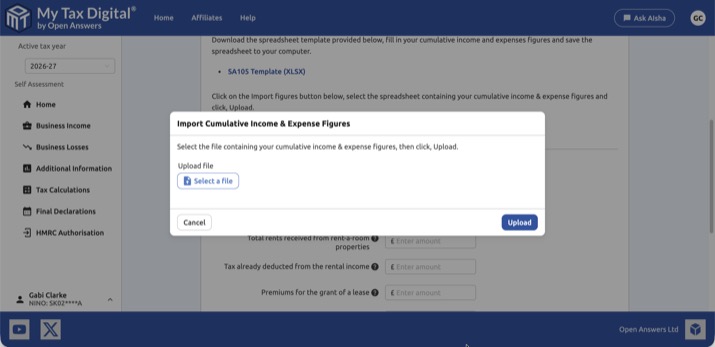
- Review the imported income figures and choose Consolidated or Granular for expenses.
- Click Submit.
If your annual turnover is below £90,000 and you want to submit a single total for all expenses, fill in the CE (Consolidated Expenses) cell in the SA105 template. Populating this field automatically pre-selects Consolidated mode on upload — you will not need to choose it manually on the review screen. Leave it blank and fill in the individual expense fields if you prefer Granular submission. Note that the CE figure covers operating expenses only — residential mortgage interest (Section 24 restriction, SA105 box 44) is entered separately under Residential property finance costs below, and is not part of the CE total, whether you're using Consolidated or Granular.
The income and expense fields above can also be typed into directly, without going through the spreadsheet import. This is intended for two narrow circumstances only: correcting a submission where the normal import route cannot be used, and customers who meet HMRC's published criteria for exemption from Making Tax Digital for Income Tax on digital exclusion grounds and are therefore unable to maintain a digital record via spreadsheet. It is not a general alternative to importing your figures.
2.4 Confirming a submission was received
After you submit, use the Income & Expenses card (not Obligations) to confirm HMRC received your figures — the end date of the Submission period field, and the totals shown there, are refreshed from HMRC. The Obligations card only shows a period as fulfilled once HMRC has received a submission covering the entire period through to its end date, so an early submission will still show as Open. Some customers have found their HMRC online account takes a little while to reflect a submission made through My Tax Digital — this delay is on HMRC's side and does not mean the submission failed.
If the Income & Expenses screen shows an error (e.g. "not found") straight after a successful submission: this is a known, intermittent fault on HMRC's side affecting the read-back of previously submitted figures, not the submission itself. If Obligations already shows the period as fulfilled/received, your figures have reached HMRC regardless of what this screen displays. This can range from an error shown alongside your figures to the whole screen failing to load — in the latter case, note that Prepare update (needed to resubmit or correct the period) is not reachable from this screen while the fault is active, and there is currently no alternative route to it. Try again in a few days — if it's still not showing, or you need to submit an urgent correction before then, contact support.
Expenses
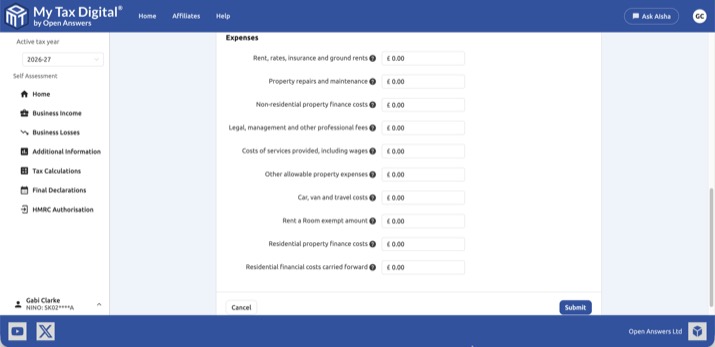
| Field | Description | SA105 |
|---|---|---|
| Rent, rates, insurance and ground rents | Property-related overhead costs. | Box 24 |
| Property repairs and maintenance | Cost of maintaining and repairing the property. | Box 25 |
| Non-residential property finance costs | Finance costs for commercial property (not residential mortgage interest). | Box 26 |
| Legal, management and other professional fees | Agent fees, solicitor costs, accountancy fees etc. | Box 27 |
| Costs of services provided, including wages | Costs of services directly provided to tenants (e.g. cleaners, gardeners). | Box 28 |
| Other allowable property expenses | Any other allowable expenses not covered above. | Box 29a |
| Car, van and travel costs | Travel costs incurred in managing the property. | Box 29b |
| Rent a Room exempt amount | The amount of Rent a Room income that falls within the tax-free threshold. | Box 37 |
| Residential property finance costs | Mortgage interest on residential lettings (Section 24 restriction applied by HMRC). | Box 44 |
| Residential financial costs carried forward | Unused residential finance costs brought forward from a prior year. | Box 45 |
2.5 Resubmitting
You can submit at any point during the quarter and resubmit as many times as needed — each submission replaces the previous one, and HMRC always holds your most recently submitted figures. The Obligations card showing a period as "Fulfilled" only confirms HMRC has received a submission for it; it does not lock the period or prevent a correction. To correct a mistake, click Prepare update again — this remains available even once the period shows as fulfilled — enter your corrected cumulative income and expense figures for the period, and submit. The one rule to keep in mind: each new submission for a period must use the same end date as before, or a later one — HMRC will not accept an earlier end date.
3. Adding a UK Property Business
Before you can submit any UK property income, you must first add the property business and configure how you will submit figures.
One business covers all your UK properties: HMRC treats all UK rental property you own as a single property business for Income Tax purposes, no matter how many individual properties you have. Add one UK Property Business covering everything — do not create a separate business per property. Quarterly income and expense figures are pooled across all your properties rather than reported individually (see §2).
3.1 Submission Mode
Choose how you will provide your income and expense figures to HMRC.
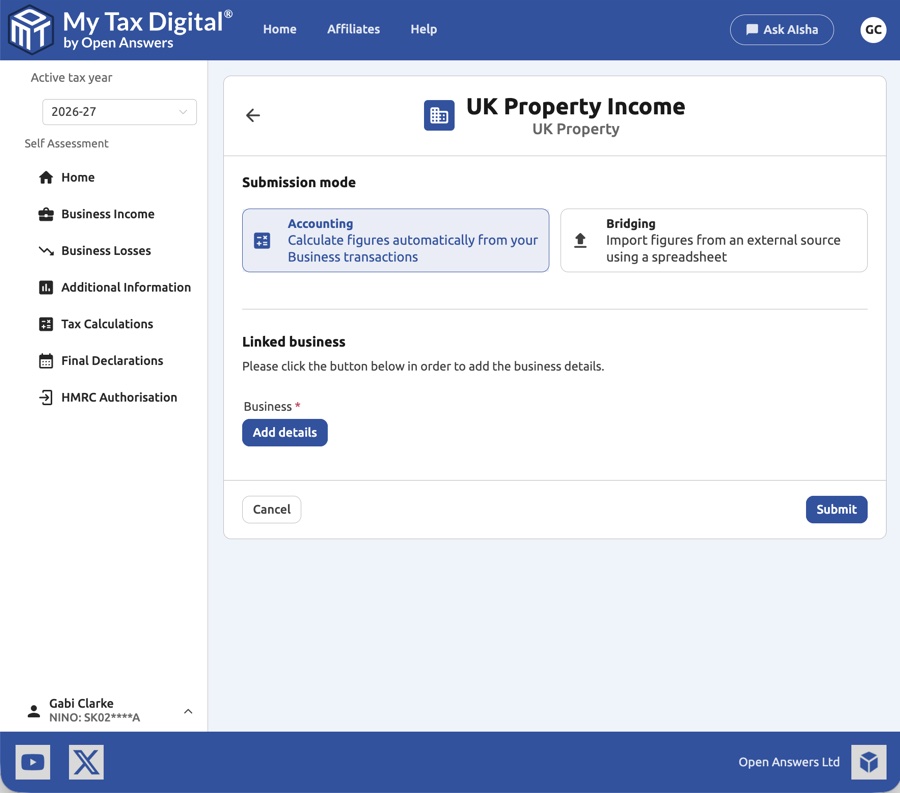
| Option | Description |
|---|---|
| Accounting | Figures are calculated automatically from your transactions recorded in My Tax Digital. Requires a linked Business, even for a sole individual landlord. |
| Bridging | You import figures from an external source using a spreadsheet. No linked Business is required. |
If you are an individual landlord without a registered property business, Bridging is usually the simpler choice — it avoids the linked-Business setup step entirely. Choose Accounting only if you want to record transactions directly in My Tax Digital.
3.2 Adding a Business
Provide the basic details for the property business.
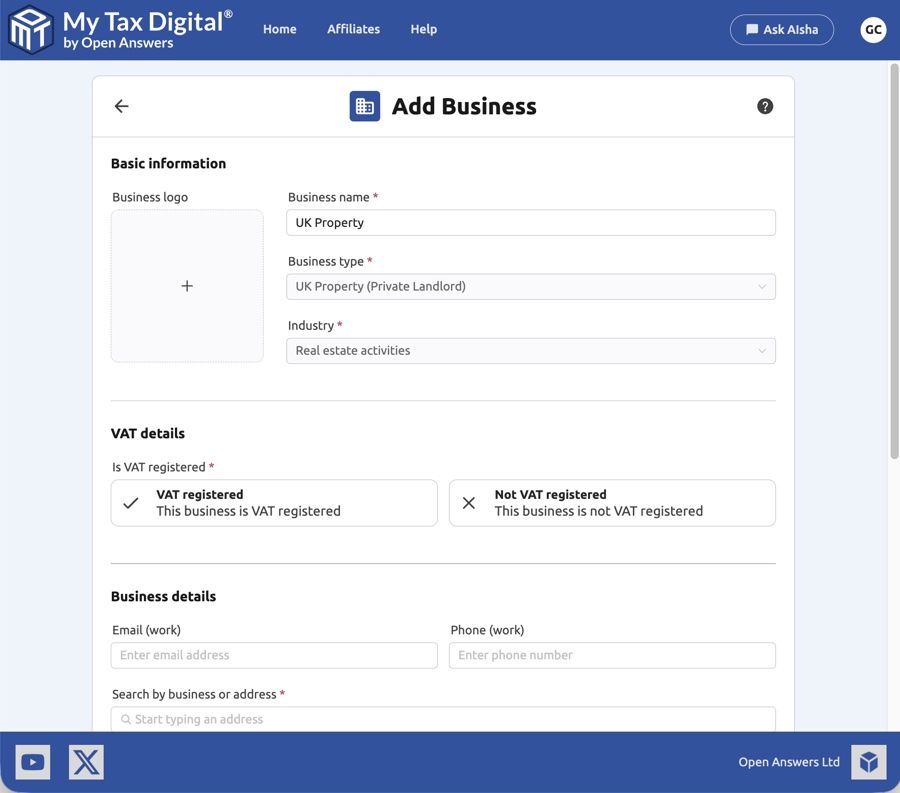
| Field | Description |
|---|---|
| Business name | A name for the property business (e.g. "UK Property"). |
| Business type | Select UK Property (Private Landlord) for residential lettings. |
| Industry | Select the appropriate industry category (e.g. Real estate activities). |
| Is VAT registered? | Indicate whether the business is VAT registered. |
| Email / Phone | Optional contact details for the business. |
| Address | Search for the business address by postcode or address. |
The Industry field is internal to My Tax Digital only — it is never sent to HMRC and has no effect on your submissions. Since the Furnished Holiday Lettings regime was abolished from 6 April 2025, a holiday let is reported as part of the same single UK property business as any other residential lettings, so it takes the same Industry classification — typically Real Estate Activities — rather than a category such as Accommodation & Food, which is intended for businesses that provide accommodation as a service (e.g. hotels or B&Bs).
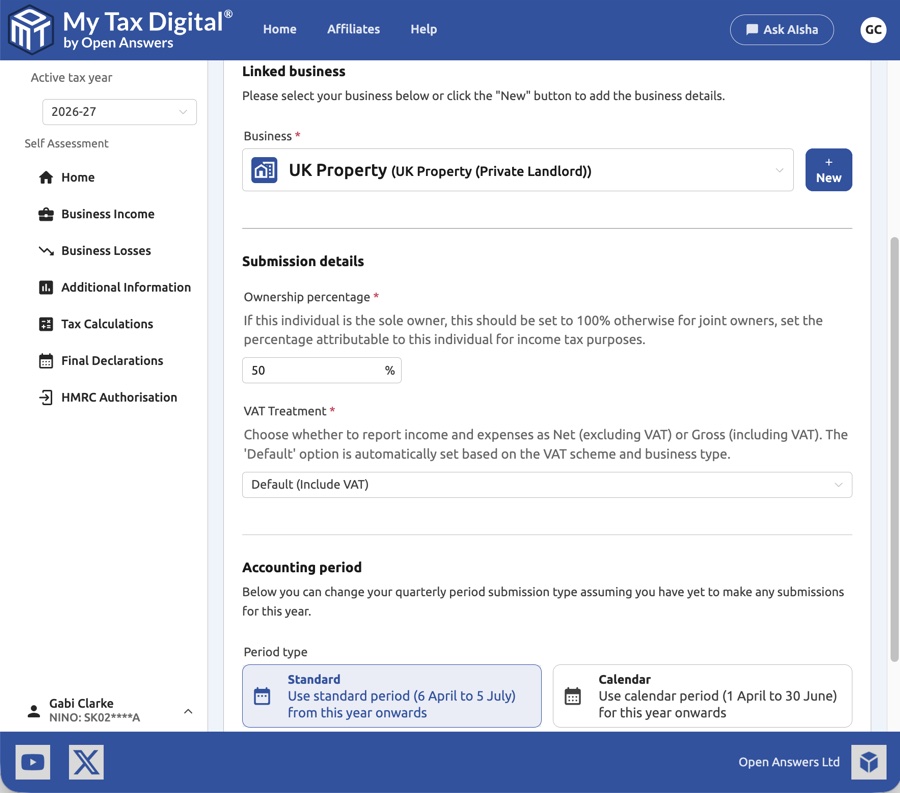
3.3 Linked Business & Submission Details
After adding the business, complete the submission configuration.
| Field | Description |
|---|---|
| Business | The property business linked to this income source. Click + New to add a new business. |
| Ownership percentage | If this individual is the sole owner, enter 100%. For joint owners, enter the percentage of income attributable to this individual for tax purposes. Decimal percentages are supported (e.g. 33.33%) for shares that aren't a round figure. |
| VAT Treatment | Choose whether to report income and expenses as Net (excluding VAT) or Gross (including VAT). The default is set automatically based on the VAT scheme and business type. |
| Accounting period — Period type | Select Standard (6 April to 5 July cycle) or Calendar (1 April to 30 June cycle). This can only be changed before any submissions have been made for the year. |
4. Adjustable Summaries
An Adjustable Summary (BSAS) allows you to adjust the cumulative income and expense figures already submitted for a period. It is required before your final tax calculation can be performed.
4.1 Viewing an Adjustable Summary
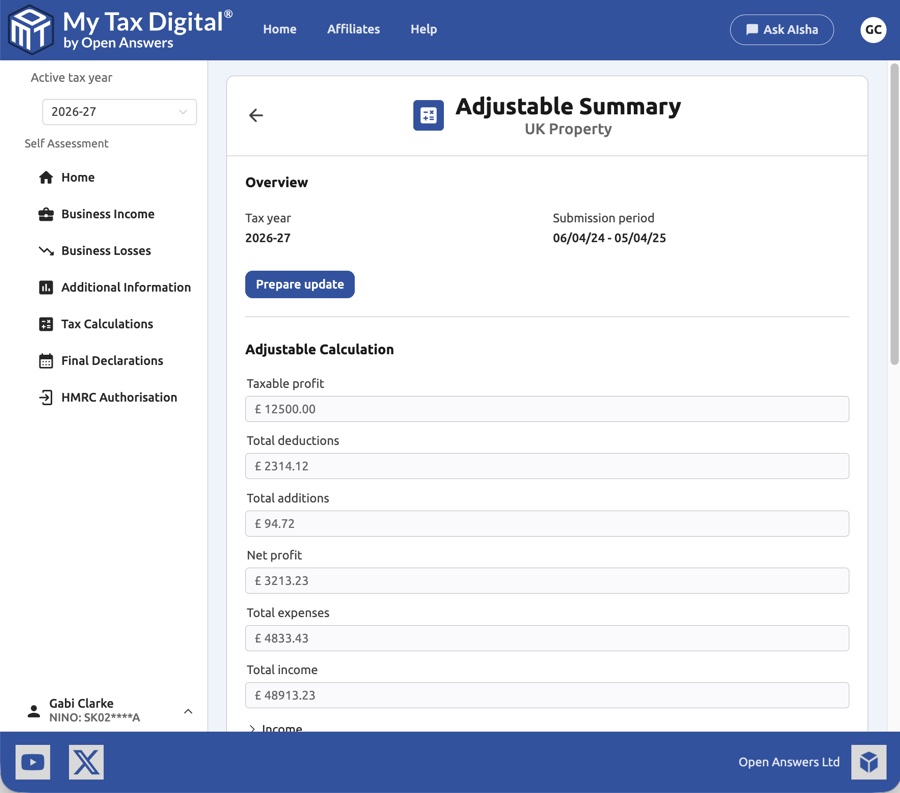
The view screen shows a read-only summary of the adjusted figures.
| Field | Description | SA105 |
|---|---|---|
| Taxable profit | The final taxable profit figure reported to HMRC. | Box 40 |
| Total deductions | The total of all deductions applied (allowances, losses b/f etc.). | - |
| Total additions | The total of all additions to net profit (balancing charges etc.). | - |
| Net profit | Net profit after income and expenses but before adjustments. | Box 38 |
| Total expenses | The total of all allowable expenses. | Boxes 24–29 |
| Total income | The total income from all property sources. | Box 20 |
Click Prepare update to unlock editing.
4.2 Updating an Adjustable Summary
When updating in Bridging mode, provide the adjusted figures directly.
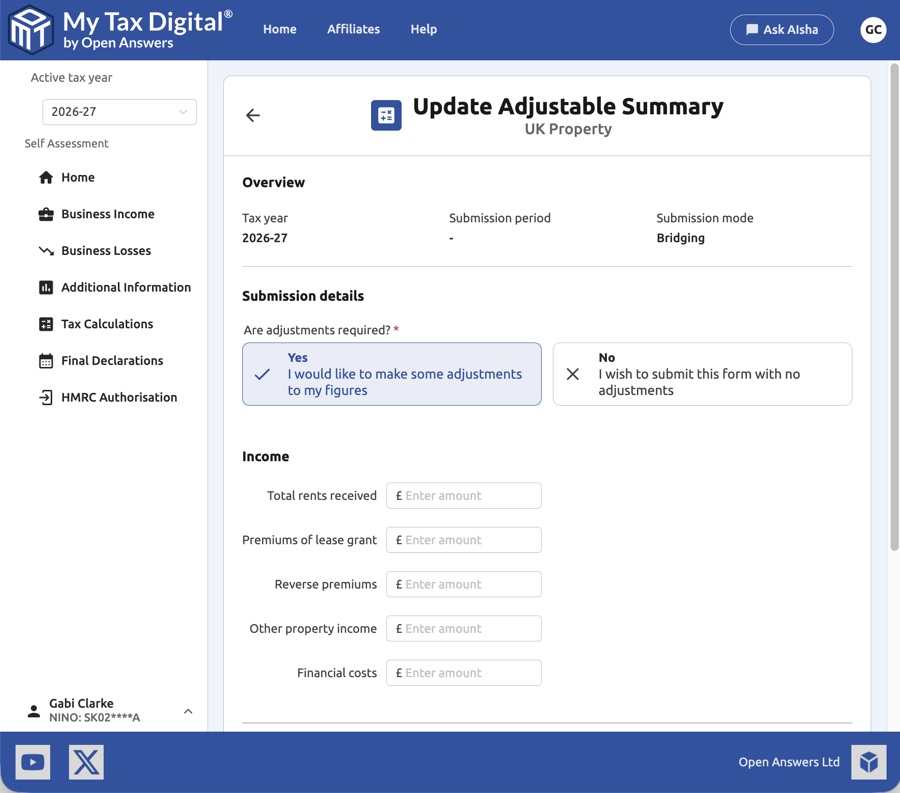
First, indicate whether adjustments are required (Yes/No), then provide the following figures:
Income
| Field | Description | SA105 |
|---|---|---|
| Total rents received | Total rental income received from all properties. | Box 20 |
| Premiums of lease grant | Taxable portion of any premiums received for granting a lease. | Box 22 |
| Reverse premiums | Payments received from a landlord to induce you to take on a lease. | Box 23 |
| Other property income | Any other income from the property business not covered above. | Box 20 |
| Financial costs | Finance costs such as mortgage interest (non-residential). | Box 26 |
Letting agent collecting rent on your behalf: Record the gross rent as an income transaction and the agent fees as a separate expense transaction. Do not record only the net amount paid to your bank account. Attaching the agent's monthly statement as a supporting file is good practice and provides evidence if HMRC queries the figures.
Expenses
Choose Consolidated (single figure) or Granular (individual categories). Granular categories include: Premises running costs, Repairs and maintenance, Financial costs, Professional fees, Cost of services, Travel costs, and Other.
Mortgage interest on residential lettings is not entered here. The Financial costs field above covers non-residential finance costs only (e.g. commercial property mortgages). Residential finance costs (SA105 box 44) cannot be adjusted via the Adjustable Summary — this figure should be included in your quarterly Income & Expenses submissions instead (see §2), with any changes made at Quarter 4.
5. Adjustments & Allowances
The Adjustments & Allowances screen is where you record annual capital allowances and property-specific adjustments. This corresponds to the adjustments section of your SA105 (UK Property) supplementary page.
5.1 Viewing Adjustments & Allowances
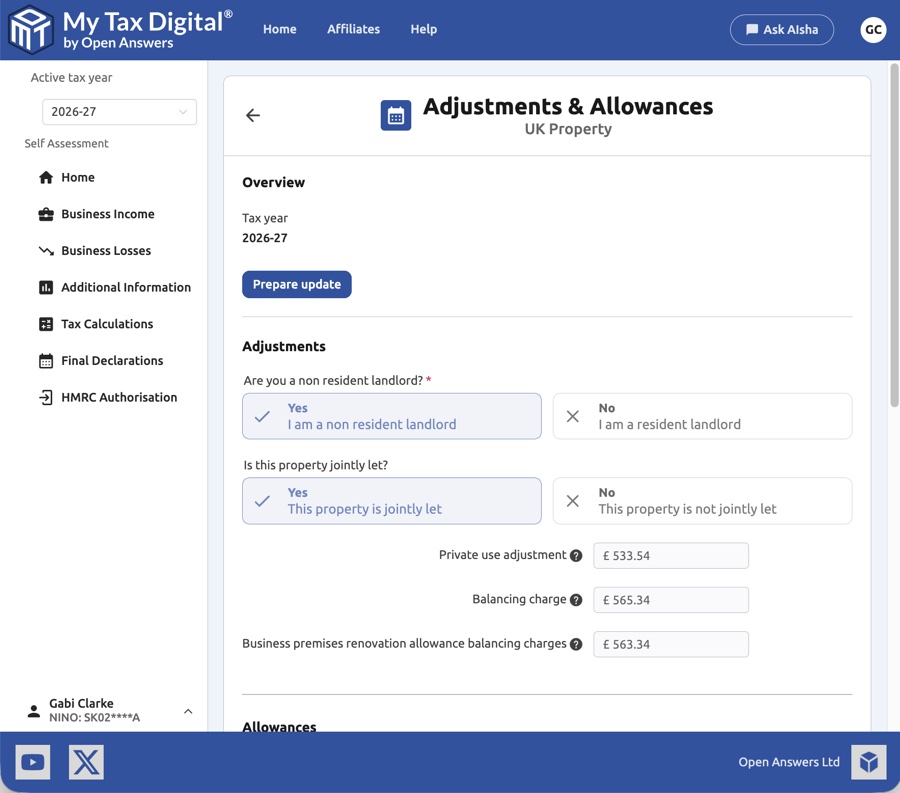
The view screen shows currently submitted figures. It also includes two property-specific questions:
| Field | Description |
|---|---|
| Are you a non-resident landlord? | Select Yes if you live outside the UK for 6 months or more a year, or No if you live in the UK. This is about where you usually live, not whether you live at this specific property. |
| Is this property jointly let? | Select Yes if the property is owned and let jointly with another person. |
The following read-only adjustment and allowance figures are also shown:
| Field | Description | SA105 |
|---|---|---|
| Private use adjustment | Reduction for any element of private use of the property. | Box 30 |
| Balancing charge | Charge arising on the disposal of a capital asset previously claimed against. | Box 31 |
| Business premises renovation allowance balancing charges | Balancing charge specific to the Business Premises Renovation Allowance. | Box 31 |
Click Prepare update to unlock editing.
5.2 Updating Adjustments & Allowances
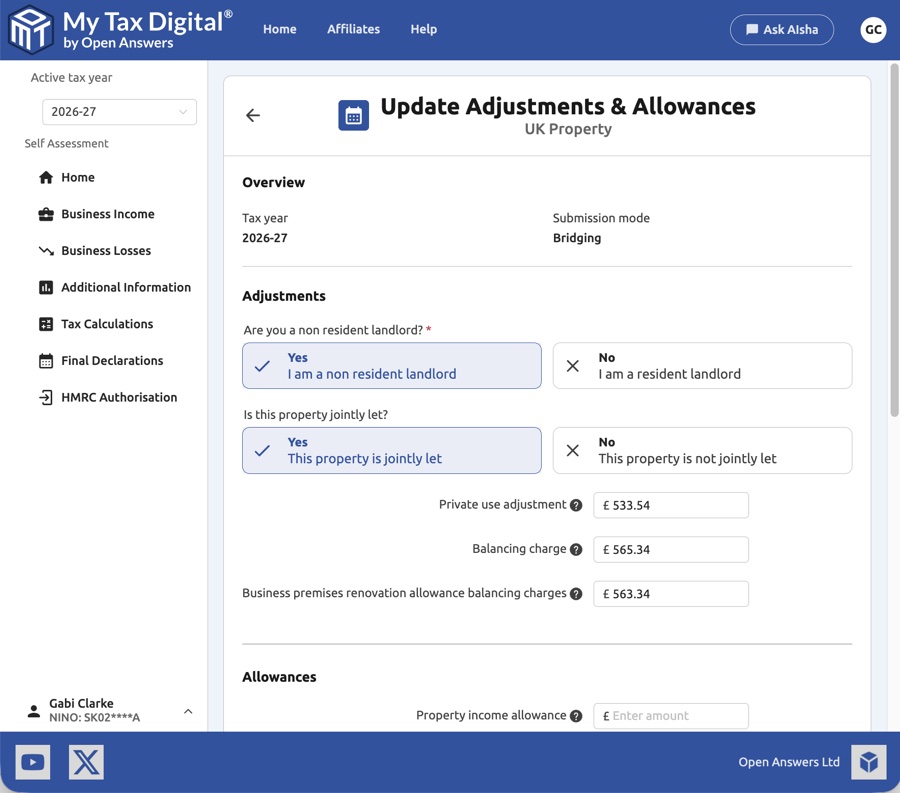
Allowances
| Field | Description | SA105 |
|---|---|---|
| Property income allowance | The £1,000 property income allowance, if claimed instead of actual expenses. | Box 20.1 |
| Annual investment allowance | 100% first-year allowance on qualifying plant and machinery. | Box 32 |
| Structures & Buildings Allowance | Annual SBA on qualifying commercial building expenditure. | Box 33 |
| Electric charge-point allowance | 100% first-year allowance on electric vehicle charging equipment. | Box 33.1 |
| Zero-emission car allowance | 100% first-year allowance on new zero-emission cars. | Box 34.1 |
| Other capital allowances | Any other capital allowances not covered by the categories above. | Box 35 |
| Replacement of domestic items | Cost of replacing domestic items (e.g. furniture, appliances, furnishings) in a furnished residential letting. Only the replacement cost qualifies; the original purchase does not. | Box 36 |
6. Joint Ownership and Share Access
Two common joint landlord scenarios require different setups:
- Same property, two owners — e.g. a couple who co-own one rental house. Use the shared business workflow below: one property business, two individuals each reporting their own percentage.
- Separate properties — e.g. each partner owns different properties independently. Each owner simply sets up their own property business in their own account. No sharing is required.
The rest of this section covers the same property, two owners workflow.
If you jointly own property with another person, both owners can submit their own quarterly returns from a single shared set of transaction records — avoiding the need to enter transactions twice.
This workflow requires both owners to use Accounting mode for their UK property income source.
Step 1: First owner sets up the property business
One owner adds the UK property business to their account in Accounting mode and records all property income and expense transactions as normal.
Step 2: Share access with the co-owner
The first owner selects the property business in the left-hand menu, then clicks Update Business. Scroll down to the Shared access section and click the + button. Enter the co-owner's My Tax Digital account email address, assign their roles, and click Submit.
For joint property, assign at minimum View Accounting so the co-owner can see the shared transaction records. Assign Manage Accounting if they also need to add or edit transactions.
Shared access and roles: These roles control the co-owner's level of access to this specific business only. The co-owner cannot see your individual account details, other income sources, or any businesses you have not explicitly shared with them.
Step 3: Co-owner links the shared business
The co-owner switches to their Individual account using the entity switcher at the bottom-left of the screen. They then navigate to Business Income and click on their UK property income source. In the income source settings, click the edit button and:
- Set submission mode to Accounting
- In the Linked business section, select the shared property business from the dropdown — it will appear because access has been granted
- Under Submission details, set the Ownership percentage to their share (e.g. 50%)
- Click Update to save
Step 4: Both owners submit independently
Both owners submit their own quarterly income and expense summaries to HMRC from their individual accounts. The underlying transactions only need to be entered once, but each person reports their own proportionate share.