

MTD VAT Returns
This section covers how to use My Tax Digital to prepare and file your MTD VAT Returns.
Quick start guide to submitting VAT Returns using Bridging mode:
-
Sign in to My Tax Digital after you have registered.
-
Select the business you previously added.
-
From the home screen, click on "MTD VAT".
-
Click on "Submit VAT return".
-
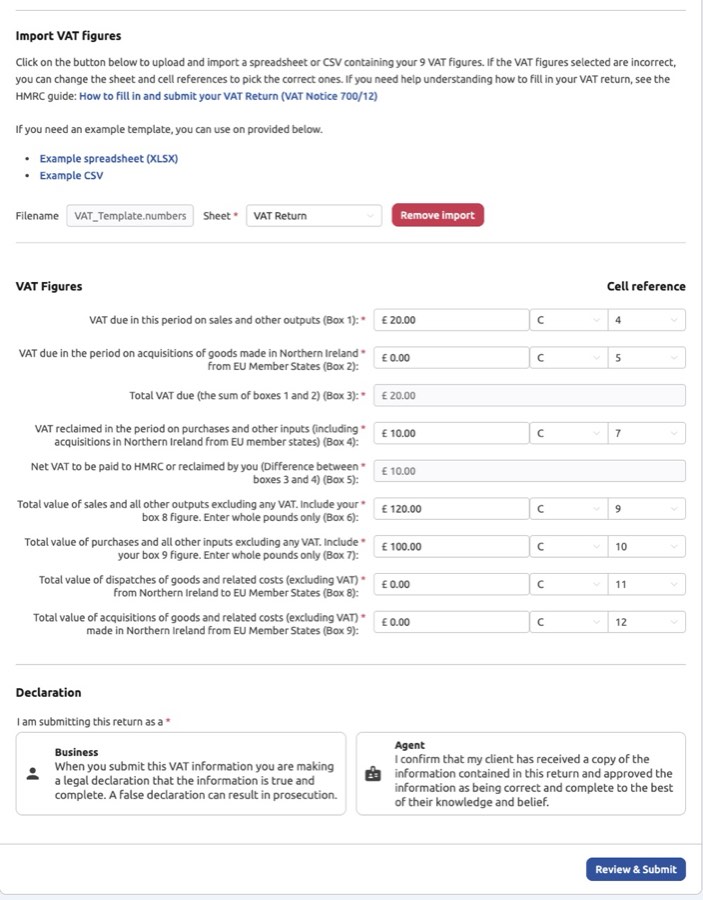
Use bridging mode to import the nine VAT figures you already have in a spreadsheet.
-
Note that the VAT scheme will default to what was set when the business was added, and the period will default to the latest open obligation. A different period can be selected if historic obligations need fulfilling, but individual period dates are controlled by HMRC.
-
If necessary, download the example templates provided by My Tax Digital and integrate them into your existing spreadsheet. These can be linked via cell references to your pre-calculated VAT figures.
-
Once the cells on the sheet are populated, save the spreadsheet to your computer.
-
Click on "Import figures" and select "file" to choose your saved spreadsheet.
-
Click the "upload" button to upload and import the figures into My Tax Digital. The sheet dropdown allows you to select alternative sheets if required.
-
Review and cross-check your figures with your original spreadsheet.
-
Select either the business or agent declaration and click on "Review and submit".
-
On the review and submit screen, double-check your figures because they cannot be changed once you click submit.
-
Click "Submit".
-
A VAT return receipt will be presented and saved to My Tax Digital; you can also print or download it for your records.
-
Payment is due separately — see the Liabilities section below for the amount owed and how to pay HMRC.
Submission Modes: Accounting vs. Bridging (Digital Links)
My Tax Digital supports two ways to prepare your VAT return data:
| Mode | How it Works | Best For |
|---|---|---|
| Accounting Mode | You use the Transactions section within the app to record all your income and expenses. The app automatically calculates the nine boxes for your VAT return based on your entered data. | Users who want to keep all their digital records in My Tax Digital. |
| Bridging Mode (Digital Links) | You keep your records in a separate spreadsheet or system. You then import a summary of the nine VAT boxes into My Tax Digital for submission. This import maintains the required 'digital link' from your source data. | Users who prefer to use a spreadsheet (e.g., Excel) or other basic software for record-keeping. |
Note: Choosing Accounting mode requires the View Accounting or Manage Accounting role (or Administrator) on this Business — see Shared Access for role details. If your role doesn't include this, the Accounting option won't appear and only Bridging mode will be offered.
Note: Your VAT return is populated from entries in the Transactions section only. Invoices created in the Invoices (e-invoicing) feature are for sending to clients and do not automatically feed your VAT return — you must also record the corresponding income as a transaction.
Using Bridging mode alongside other accounting software
Bridging mode is designed for customers who calculate their VAT return in another system (a spreadsheet, or software such as Sage or Xero) but need a route to actually submit it to HMRC under Making Tax Digital. It is an alternative way of making the MTD submission, not an additional one — HMRC only accepts one VAT return submission per period per VAT Registration Number. If your other software has already submitted the return for a period, that obligation will show as Fulfilled and submitting the same figures again through My Tax Digital would be rejected as a duplicate. Check the Obligations screen if you're not sure whether a period has already been filed elsewhere.
Supported VAT Schemes
When calculating your VAT return, the app supports the following common VAT schemes:
| Scheme Name | VAT Calculation Method |
|---|---|
| Standard Accounting Scheme | VAT is due on the date the invoice is issued or received, regardless of whether the money has been paid or collected. |
| Cash Accounting Scheme | VAT is due on the date you receive payment from a customer or the date you pay a supplier. |
| Flat Rate Scheme | You pay a fixed percentage of your VAT-inclusive turnover. The system supports this in Accounting mode by applying the flat rate percentage you specify. Note: new VAT registrants receive a 1% first-year discount on their flat rate. If this discount expires mid-quarter, you will need to calculate Box 1 as a blended figure — applying the discounted rate to the turnover in the first portion of the quarter and the standard rate to the remainder — before importing or entering the figures in My Tax Digital. |
| Margin Scheme | Used for selling second-hand goods, works of art, or antiques. VAT is calculated only on the difference between the sale price and the purchase price (your margin). |
Reverse Charge VAT (domestic and overseas): Accounting mode has no transaction type that posts VAT to both Box 1 (output) and Box 4 (input) at the same time, so it cannot fully replicate reverse charge treatment. This affects the Domestic Reverse Charge (common for VAT-registered CIS subcontractors) and reverse charge on overseas services — for example digital services bought from OpenAI, Meta, or Google Ads. If any of your VAT is subject to a reverse charge, use Bridging mode instead: keep your records in a spreadsheet, calculate the nine VAT boxes yourself (or with your accountant) including the reverse charge entries, and import the figures for submission. Whether reverse charge applies to a particular purchase is a tax question, not a software one — check with HMRC or your accountant, especially for overseas services where place-of-supply rules apply. For your ITSA quarterly returns, Bridging mode is also recommended for consistency if you're a CIS subcontractor — record your gross CIS earnings as Self Employment turnover; contractor deductions will appear automatically in the CIS section under Additional Information once your contractors have submitted to HMRC (you can also add any missing entries manually).
MTD VAT and MTD for Income Tax
MTD for VAT and MTD for Income Tax (ITSA) are two completely separate obligations. Using My Tax Digital to submit VAT returns does not automatically mean you also need to file quarterly income tax submissions.
Already have this person set up as an Individual for ITSA, and now need to add VAT too? VAT is handled through a separate Business entity, not the Individual. See Adding new Businesses and Individuals for the steps to add a Business alongside an existing Individual for the same person or trade — both entity types can exist in the same account.
MTD for Income Tax is being introduced in phases: mandatory for sole traders and landlords with qualifying income over £50,000 from April 2026, over £30,000 from April 2027, and over £20,000 from April 2028. If you are above the relevant threshold, you would need to submit four quarterly income updates plus a Final Declaration each tax year. If you are unsure whether you are affected, speak to HMRC or a tax adviser. My Tax Digital supports both obligations in the same account.
Multiple businesses and VAT registration numbers
Each business in My Tax Digital must have its own unique VAT Registration Number (VRN). VAT obligations and returns are filed against a VRN — if two businesses share the same VRN, submitting a return for one will satisfy the obligation for both, and you will be unable to file separately for the second.
If you are part of a VAT group (where multiple entities legitimately share one VRN), only one return per period is expected by HMRC. File from the representative member's business entry and leave the others unfiled for that period.
If your businesses are separate and each should have its own VRN, correct any duplicate by clicking the business name in the left-hand menu, selecting Update Business, and entering the correct VRN.
VAT Return Receipts
This screen allows you to view proof of every VAT return successfully filed through My Tax Digital.
-
View Receipts: Navigate to VAT Return Receipts in the VAT menu.
-
Browse History: A list of previously submitted VAT periods and the submission date will be shown.
-
View Details: Click on a period to see the full details, including the official Receipt ID provided by HMRC, the nine box figures submitted, and the submission date and time. This serves as your proof of filing.
Correcting a Submitted VAT Return
Once a VAT return has been submitted to HMRC, it cannot be amended in My Tax Digital. If you discover an error after submission, the correction is handled outside the app using HMRC's standard error correction process (VAT Notice 700/45).
Small errors (below the threshold defined in HMRC VAT Notice 700/45) can be included as an adjustment in your next VAT return. If you are in Accounting mode, enter the correction as a transaction dated in the current period — do not backdate it to the original period. The adjustment will then be included automatically in your next return.
Larger errors above the threshold must be notified to HMRC separately using form VAT652. See HMRC's guidance on correcting VAT errors for the current thresholds and the form.
Note: If you are in Bridging mode, include the net corrected figures in your next import — the adjustment will flow through in the nine boxes you submit.
VAT Return Box Reference
Each of the nine boxes on a VAT return has a specific meaning. The table below summarises what goes in each box and the sign convention.
| Box | Description | Sign |
|---|---|---|
| Box 1 | VAT due on sales and other outputs | Usually positive |
| Box 2 | VAT due on acquisitions from EU member states (Northern Ireland only) | Usually positive |
| Box 3 | Total VAT due (Box 1 + Box 2, auto-calculated) | Usually positive |
| Box 4 | VAT reclaimed on purchases and other inputs | Usually positive |
| Box 5 | Net VAT to pay or reclaim (Box 3 minus Box 4, auto-calculated) | Must be positive |
| Box 6 | Total value of sales and outputs, excluding VAT (including VAT if you use the Flat Rate Scheme) | Usually positive |
| Box 7 | Total value of purchases and inputs, excluding VAT | Usually positive |
| Box 8 | Total value of supplies to EU member states (Northern Ireland only) | Usually positive |
| Box 9 | Total value of acquisitions from EU member states (Northern Ireland only) | Usually positive |
Most boxes will be positive for most returns. Negative values can arise in boxes 1, 4, 6, and 7 — for example, if credit notes issued or received in the period exceed the period's sales or purchases, or when including small error corrections from a prior period within the thresholds set out in VAT Notice 700/45.
Box 4 — enter the VAT you are reclaiming as a positive figure for a normal return. Deduct any VAT on credit notes issued to you from this figure; the result may be negative if credits exceed new input VAT for the period.
Box 5 is the exception: HMRC requires this to be a positive figure. The direction of payment is determined by the Box 3 / Box 4 relationship — if Box 4 exceeds Box 3, HMRC will credit your account; you do not indicate this with a minus sign in Box 5.
Box 6 under the Flat Rate Scheme: if your VAT scheme is Flat Rate, Box 6 must include VAT rather than exclude it — the live return form's Box 6 label reflects this automatically. The downloadable VAT_Template.xlsx is not scheme-aware and always labels Box 6 as "excluding VAT" — if you use the Flat Rate Scheme and enter your figures via the template, include VAT in your Box 6 total regardless of what the template label says.
Obligations
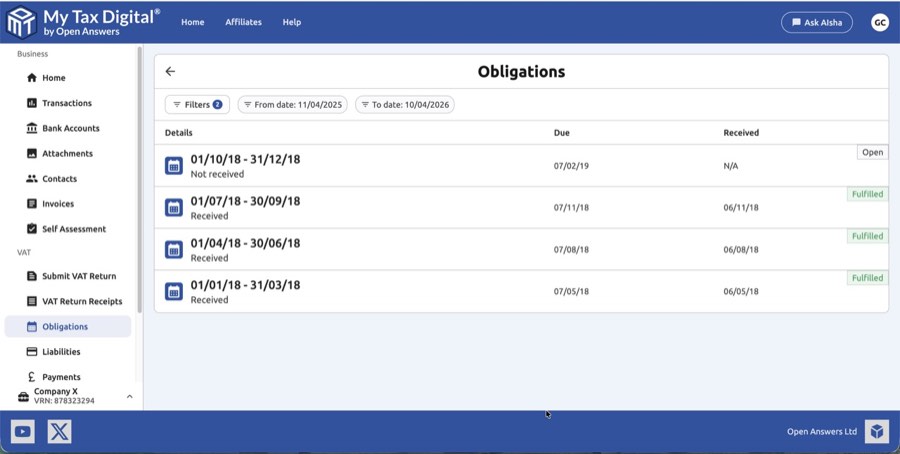
The Obligations screen displays all your past, current, and future VAT return deadlines as communicated by HMRC.
-
Check Deadlines: Navigate to Obligations in the VAT menu.
-
View Status: You will see a list of VAT periods. The status will indicate whether the obligation is Fulfilled (submitted) or Open (due or overdue).
-
Action: For Open obligations, you can click through to the submission screen to prepare and file the return before the due date.
If no obligation is visible for a period you expect to file, HMRC may not yet have generated it. This is common for annual VAT filers after their previous return is processed — HMRC controls when the next obligation is created. Check your Government Gateway account to confirm; if the obligation is not there either, contact the HMRC VAT helpline and ask them to confirm when it will appear. Once HMRC generates it, it will show in My Tax Digital automatically.
If a period looks shorter than your usual quarter (for example, two months instead of three), this is expected when you file late, when your VAT stagger group changes, or around your first or last VAT period. The opposite can also happen — a single obligation occasionally spans several of your usual periods (for example, well over a year) if returns haven't been filed for some time. VAT obligation periods and stagger groups are set entirely by HMRC, not by My Tax Digital — if the dates shown look wrong (too short or too long), check with the HMRC VAT helpline rather than the app.
A gap period can also arise after a VAT group is disbanded or re-registered — for example, a period covering the days between the old group's final return and the new registration's first period. My Tax Digital cannot create or add a missing period; only HMRC can issue it. Contact the HMRC VAT helpline to have the gap period issued, then it will appear in My Tax Digital automatically.
Liabilities
This screen shows your financial position with HMRC regarding your VAT account, specifically the amounts you owe or are due to reclaim.
-
View History: Navigate to Liabilities in the VAT menu.
-
Review Amounts: The system pulls data directly from HMRC to show:
- Amount Due: How much VAT you owe for a given period.
- Amount Reclaimed: How much VAT HMRC owes you for a given period.
-
Payment Planning: Use this screen to track your total outstanding VAT liability.
Paying your VAT bill: My Tax Digital handles the submission of your return to HMRC but is not involved in collecting payment. To pay, use your HMRC VAT online account. The deadline is typically 1 month and 7 days after the end of your VAT accounting period.
Payments
The Payments section provides a historical record of all VAT payments made to or received from HMRC.
-
Check Payments: Navigate to Payments in the VAT menu.
-
Verify Transactions: View the date and amount of each payment made to HMRC and any refunds received from HMRC.
-
Reconciliation: Use this screen to reconcile your bank records against HMRC's records to ensure all VAT payments have been correctly recorded.
Reminders
The Reminders screen controls who receives email notifications for open VAT obligations.
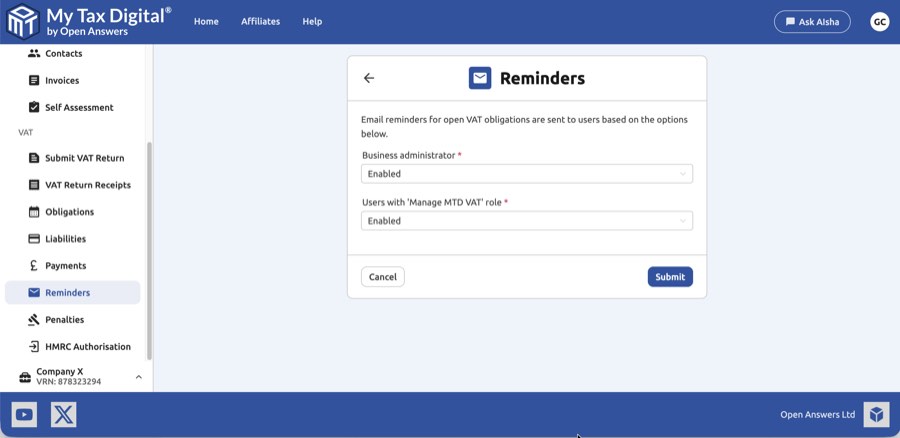
- Navigate to Reminders in the VAT menu.
- Set the reminder preference for Business administrator and Users with 'Manage MTD VAT' role to either Enabled or Disabled.
- Click Submit to save your preferences.
Penalties
This screen shows any penalty charges or penalty points applied to your VAT account by HMRC.
-
View Overview: Navigate to Penalties in the VAT menu.
-
Summary: The top of the screen provides an overview, including the total value of any Late Submission Penalties and Late Payment Penalties applied.
-
Detailed Information: Scroll down to see detailed information on any active or inactive penalty points, the regime threshold, and any principal charge references issued by HMRC.
This screen is read-only — it displays data as reported by HMRC and cannot be edited here. If the screen appears empty or fields are greyed out, this means HMRC currently has no penalties recorded against your account, which is the expected state for most businesses; it is not a sign of a software fault. For questions about a specific penalty, appeal, or deregistration, contact HMRC VAT Enquiries on 0300 200 3700.