

HMRC Authorisation for Income Tax Self Assessment
Before you can submit any data, you must give My Tax Digital permission to interact with your Income Tax Self Assessment account on HMRC's system.
Note: Signing up for MTD with HMRC (on the HMRC website) and completing this authorisation are two separate steps. If you have signed up with HMRC but cannot access any pages in My Tax Digital, it means this authorisation step has not yet been completed.
Important — sign-up is a prerequisite for authorisation. The HMRC authorisation flow in My Tax Digital requires you to have already signed up for MTD ITSA with HMRC first. The authorisation will not complete without an active MTD enrolment. Note that once you sign up with HMRC for a given tax year, you are enrolled and required to submit quarterly updates for that year.
If you are not yet required to sign up and want to explore the software beforehand, you can register a My Tax Digital account and use the Transactions section for digital record-keeping and set up your business profile — all without HMRC authorisation. You can also download the bridging templates to check your spreadsheet format in advance: SA103 Self Employment, SA105 UK Property, and SA106 Foreign Property. The submission workflow itself requires active MTD enrolment.
A UK National Insurance number is required to create an Individual profile for MTD ITSA — there is currently no route to set one up without one. This is unlikely to be a problem in practice: under the Income Tax (Digital Obligations) Regulations 2026 (Regulation 35), anyone with no NINO on 5 April of the previous tax year is exempt from the MTD digital obligation for that tax year and continues filing a standard Self Assessment return using their UTR instead. If this applies to you, confirm your position with HMRC or your accountant.
-
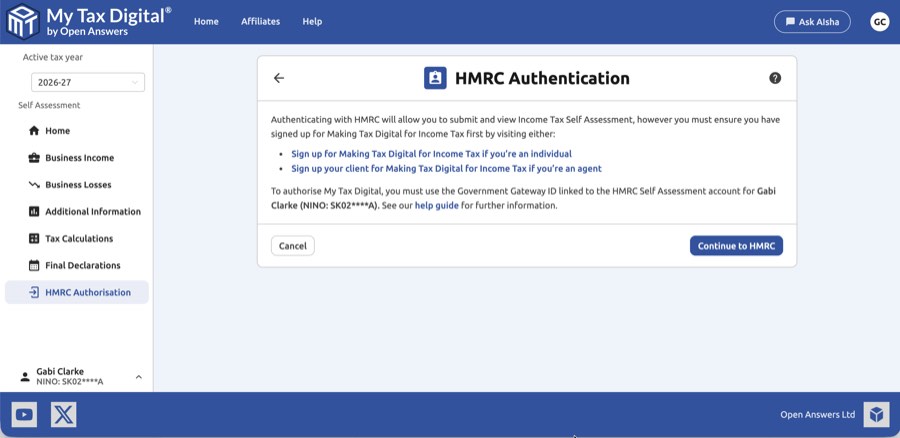
From the Self Assessment home screen, click on HMRC Authorisation.
-
You must ensure you have signed up for Making Tax Digital for Income Tax first by visiting either:
-
Ensure you meet the HMRC MTD requirements for Income Tax Self Assessment and opt-in for your chosen tax year.
-
It can take up to 72 hours for HMRC to confirm your MTD opt-in. Before proceeding, verify that your sign-up has been processed by logging in to your HMRC online services account and selecting Income Tax. You should see a Making Tax Digital for Income Tax section with a link to view and manage it.
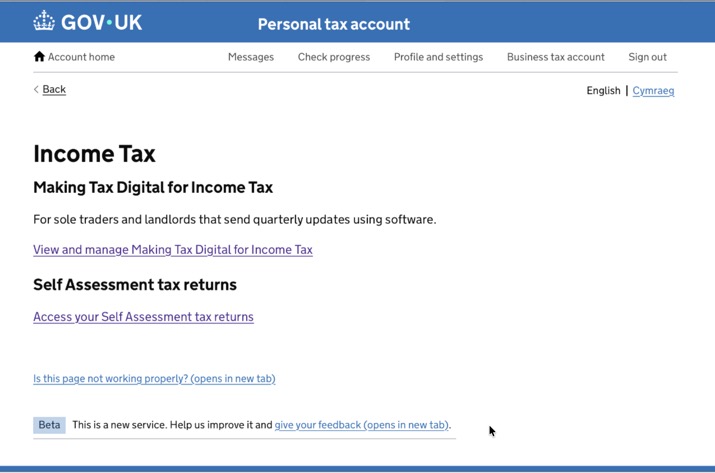
Click View and manage Making Tax Digital for Income Tax. Your Self Assessment dashboard should show your UTR, upcoming submission deadlines, and a Your reporting obligations panel listing "use Making Tax Digital for Income Tax".
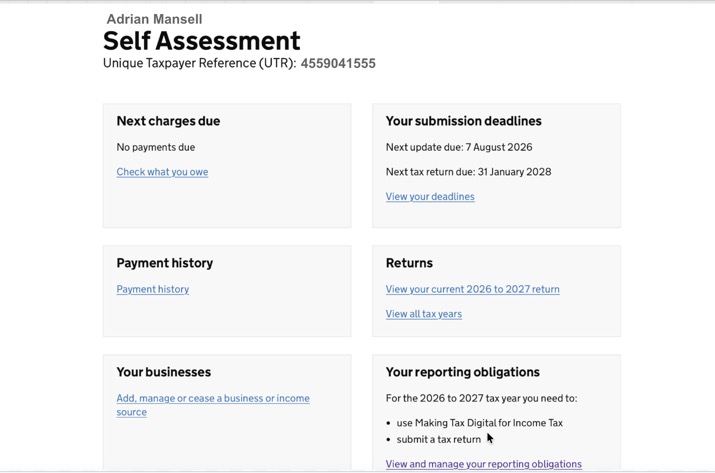
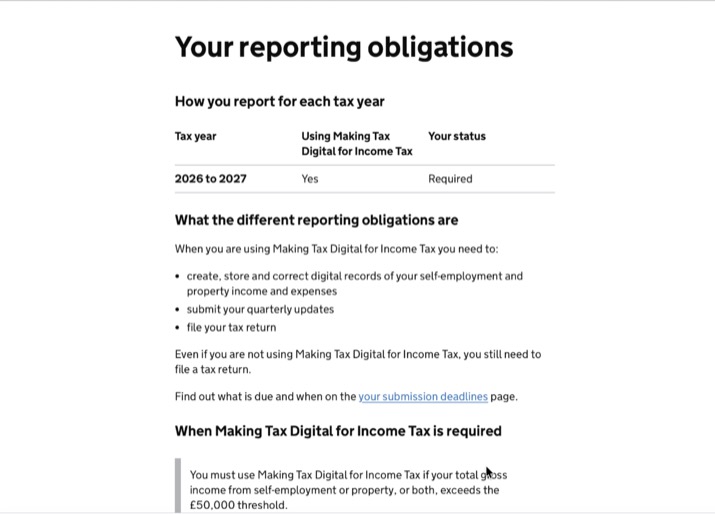
Click View and manage your reporting obligations. The table should show "Using Making Tax Digital for Income Tax: Yes" with status Required.
Click View your deadlines — your quarterly submission deadlines should be listed.
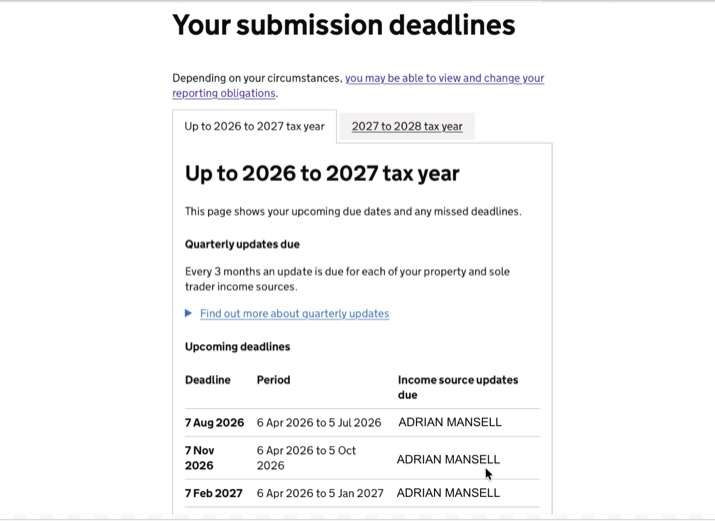
If any of the above do not appear, your sign-up has not yet completed — wait a little longer before attempting to authorise.
If you have already signed up for MTD ITSA but the Income Tax tab is missing entirely from your HMRC online services account (you see only tabs such as PAYE and Self Assessment), this may mean your Self Assessment access has been deregistered or requires restoration. In this case, request access restoration via your HMRC online account or by contacting HMRC on 0300 200 3310 — do not re-register for Self Assessment, as you are already enrolled. Once HMRC restores your access, the Income Tax tab and Making Tax Digital section will appear and you can proceed with authorisation in My Tax Digital.
-
Once your sign-up is confirmed, click the Continue to HMRC button. Once authorisation is complete you can begin submitting Self Assessment returns.
-
This will redirect you to the HMRC site where you will be prompted to authenticate with your Government Gateway ID and password.
-
IMPORTANT: If you have multiple Government Gateway IDs, make sure you enter the one for your Self Assessment account otherwise you'll receive the response, The client or agent is not authorised. and you'll then need to click Start again.
-
If your sign-up is confirmed as active but the error persists after retrying with the correct ID, the issue lies within HMRC's records. Contact HMRC's MTD for Income Tax helpline and ask them to confirm the link between your Government Gateway ID and your NINO. General Self Assessment enquiries: 0300 200 3310.
Notes for Agents
There are two ways to act for a client in My Tax Digital: authorise directly using your own agent Government Gateway credentials (covered below), or ask the client to register their own account and grant you Shared Access to their record. Shared Access is often simpler for a client who wants to keep visibility of their own account; direct agent authorisation is more efficient when you are managing submissions for many clients yourself.
If you are authorising on behalf of a client, there are two important differences from the individual flow.
Which Government Gateway credentials to use
This depends on whether you have set up client authorisation through your HMRC Agent Services Account (ASA):
- If you have ASA client authorisation in place — use your own agent Government Gateway credentials when authenticating with HMRC in step 6.
- If you have not set up ASA client authorisation — you will need to use your client's own Government Gateway credentials at that step.
If you are unsure whether ASA authorisation is in place, log in to your Agent Services Account and check whether the client appears under your authorised clients.
The NINO confirmation screen
After HMRC redirects you back to My Tax Digital, you will be prompted to enter a National Insurance number. This is asking for your client's NINO, not your own. You can usually see the client's NINO displayed on the same screen — ensure you enter that value, not your own NI number.
If the NINO is rejected
There are two separate places a NINO is recorded — the individual's profile (editable via Update Individual in the left-hand menu) and the NINO confirmation step in the authorisation flow. Both must be correct and consistent.
If the NINO you enter is rejected or you see an error after submitting it:
- Check the NINO entered matches the client's profile. Go to the individual in the left-hand menu, click Update Individual, and verify the National Insurance number stored there is correct.
- Click Start again on the authorisation screen to re-run the HMRC OAuth step with the correct NINO. This restarts the Government Gateway authentication from the beginning.
- If the error persists after re-entering the correct NINO, the Government Gateway account may not be correctly linked to that NINO in HMRC's records. Contact HMRC's MTD for Income Tax helpline on 0300 200 3310 to confirm the link.
Authorising multiple clients
This authorisation process must be completed separately for each client you manage. Each client requires their own HMRC authorisation using your agent Government Gateway credentials.
How this differs from VAT authorisation: if you're used to managing VAT clients, note that MTD ITSA works differently — for VAT, a single agent authorisation covers all your VAT clients and is renewed roughly every 18 months. For MTD Income Tax, HMRC requires separate authorisation for each individual client, with no equivalent "authorise once for all clients" step. This is an HMRC requirement, not a My Tax Digital limitation.
Main agents and supporting agents
HMRC distinguishes between two agent roles:
- Main agent — full access to MTD APIs, including submission.
- Supporting agent — restricted access; cannot use certain MTD APIs that are reserved for the main agent.
If you are set up as a supporting agent for a client and are seeing a 403 "client or agent not authorised" error, this is the likely cause. You must be authorised as the main agent to submit data through My Tax Digital. See HMRC's guidance on main and supporting agent access for details.
Adding existing SA client authorisations to your Agent Services Account
If you have existing Self Assessment client authorisations under a legacy SA agent code (IR-SA-AGENT format, e.g. a 6-character alphanumeric IR agent code) and have not yet migrated them to your Agent Services Account (ASA), you must do so before you can act for those clients under MTD. To migrate:
- Log in to your Agent Services Account.
- On the homepage, click Add existing Self Assessment authorisations to this account.
- Enter your IR agent code when prompted.
- Sign in with the Government Gateway credentials linked to that agent code.
- Your existing SA client authorisations will be added to your ASA.
Until this migration is done, those clients will return a 403 error when you attempt to authorise them in My Tax Digital.
Identity verification prompts during authorisation
If HMRC asks you or your client to verify identity (e.g. via passport or driving licence) partway through the authorisation flow, this is HMRC's own step, not something My Tax Digital triggers. It is most commonly caused by either using the wrong Government Gateway credentials for step 6, or attempting to authorise a client whose legacy SA agent authorisation has not yet been migrated to your Agent Services Account — see the migration steps above. Confirm you are using the correct credentials and that the migration is complete before contacting HMRC.
The specific document options HMRC offers (e.g. passport, driving licence) are generated by HMRC's own identity-checking service and can genuinely vary from one attempt to the next, even for the same agent or client. If the options shown don't include a document you hold, click Start again and retry — a different attempt may offer a different combination. If you consistently see the same options and hold none of them, this isn't something My Tax Digital can influence; contact HMRC's MTD for Income Tax helpline on 0300 200 3310 to ask about alternative verification routes.
Troubleshooting: Income Sources Not Appearing
After authorising, you may find that an expected income source type — such as UK property (SA105) — is not listed under Business Income in My Tax Digital.
This is controlled by HMRC, not by My Tax Digital. The income sources available to you are determined by your MTD ITSA registration held at HMRC. My Tax Digital reads these directly from HMRC; it cannot add or remove income source types on your behalf.
This is a different scenario from an income source that's listed but shows nothing when you click into it. If the income source itself appears under Business Income but nothing shows on its hub, you likely just haven't chosen a submission mode for it yet — click into it and select Bridging or Accounting to unlock the hub. This is also unrelated to manually adding a Business entity from the left-hand menu: that creates a standalone record for Accounting mode and does not connect to, or create, an HMRC-fed income source — the two are set up independently of each other.
If an income source type is missing:
- Log in to your HMRC online services account.
- Go to Income Tax and then View and manage Making Tax Digital for Income Tax.
- Check your registered income sources. If the expected type (e.g. UK property) is not listed, you can add it from there.
- Once added, return to My Tax Digital — the new income source should appear within a short time.
If HMRC confirms the income source is already registered but it still isn't showing: this can occasionally happen the first time My Tax Digital loads a new tax year's data for that source — a brief timing gap on our side while the record is set up, even though HMRC's registration is already correct. Log out of My Tax Digital fully, then log back in and check Business Income again. If it's still missing after that, contact support for a closer look at your specific account rather than continuing to re-check your HMRC registration.
If you are unable to add the income source through HMRC online services, contact HMRC's MTD for Income Tax helpline on 0300 200 3310 for assistance.
If income sources you could previously see have now disappeared entirely: your HMRC authorisation may have quietly gone stale (for example, if it hasn't been used for a while). The HMRC Authorisation screen does not show a live "authorised" or "connection expired" status — it always displays the same Continue to HMRC button regardless of whether your existing connection is still working. If Business Income shows no income sources at all despite having worked previously, try going through HMRC Authorisation again rather than assuming something else is wrong; this refreshes the connection and does not create a duplicate registration.
If authorisation itself keeps failing with "the client or agent is not authorised", even after checking your Government Gateway ID: this can happen when your MTD registration has completed at HMRC but no income source was actually attached to it, even if you entered your Self Employment or property details during sign-up. To fix this:
- Log in to your HMRC online services account.
- Under "Your current HMRC online taxes and benefits", check whether a Making Tax Digital section is shown at all. If it isn't, look under "Other Services that might be relevant" and click through to Making Tax Digital.
- Proceed as if registering again. You may see a message confirming you're now registered for Making Tax Digital as an online service — this is expected and does not create a duplicate registration.
- Once the Making Tax Digital section appears under your current taxes and benefits, open it and check the Income Sources area. Re-enter your Self Employment or property details (including the original business start date) if prompted.
- Return to My Tax Digital and try HMRC Authorisation again — it should now succeed.
If this doesn't resolve it, HMRC's MTD for Income Tax helpline (0300 200 3310) can confirm directly whether an income source is attached to your registration.
Revoking Authorisation
There are three ways to disconnect My Tax Digital from your HMRC account, depending on what you want to achieve:
- Revoke software access only: Log in to your HMRC online services account, go to Manage account, and find the connected software or third-party applications section. Remove My Tax Digital from there. This revokes the OAuth token without affecting your MTD registration or your My Tax Digital account.
- Close your My Tax Digital account: Click your name in the top-right corner of the dashboard, select Edit Profile, and scroll to the Delete Account section. This removes your account and all associated data from My Tax Digital.
- Opt out of MTD ITSA with HMRC: If you want to stop filing under Making Tax Digital for Income Tax entirely, contact HMRC directly on 0300 200 3310.