

Self Employment Income
This guide explains how to manage your self employment income submissions in My Tax Digital, including adjustable summaries and annual adjustments & allowances.
1. The Self Employment Income Hub
The Self Employment Income screen is the main management hub for a self employment business. From here you can navigate to all the submission areas for the business.
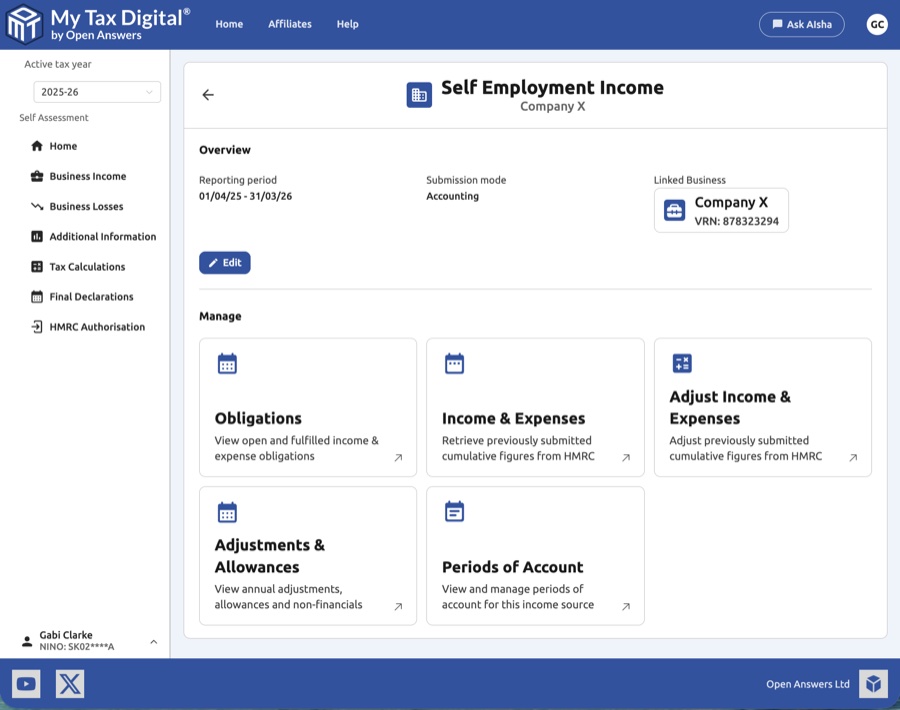
| Card | Description |
|---|---|
| Obligations | View open and fulfilled income & expense submission periods. |
| Income & Expenses | Retrieve and review previously submitted cumulative income and expense figures. |
| Adjust Income & Expenses | Submit or update an Adjustable Summary — a HMRC-required end-of-year adjustment to your cumulative figures. |
| Adjustments & Allowances | Submit annual adjustments and capital allowances, including Structures and Buildings Allowances. |
| Periods of Account | View and manage periods of account for this income source. |
The hub also shows the current Reporting period, Submission mode (Accounting or Bridging), the income source's HMRC Business ID, and its registered Address and Start date. Address is shown only where HMRC's own record provides one. Start date is always shown as a row on the hub; where HMRC's record has no commencement date on file, it displays as "Not provided by HMRC" rather than a date.
In Accounting mode, your income and expense transactions are recorded in the linked business's Transactions section — this is not on the hub itself. To get there, click the business name in the left-hand sidebar (listed under your name) or use the Linked Business button at the top of this screen.
Ceased businesses
If you have ceased a self-employment business, it will continue to appear in the income source list. HMRC keeps it visible because you may still have outstanding quarterly submissions to complete for the period the business was active. To tell a ceased business apart from an active one with the same trading name, click into each entry and check the Obligations screen — the ceased entry will have obligations only up to the date of cessation and no further open ones.
Multiple income sources with the same name
If you have two active self-employment income sources registered under the same trading name, each one's hub screen shows its unique HMRC Business ID, and usually its Start date, so you can tell them apart directly within My Tax Digital without needing to check HMRC's portal. If Start date shows "Not provided by HMRC" for one or both (see above), compare the registered business name shown on each hub instead — HMRC sometimes registers the same person under slightly different name formats (e.g. with or without a title, or using initials instead of a first name), which is enough to distinguish them even without a Start date. Trading names displayed in My Tax Digital come directly from HMRC's records and cannot be changed within the app.
If HMRC's own portal appears to show fewer income sources than My Tax Digital does for the same client, we cannot resolve that discrepancy from our side — contact HMRC directly to confirm how many sources are registered.
"Own Name" as the trading name
If the Income & Expenses screen shows "Own Name" rather than a trading name (common for agents managing a client with no separate trading name registered), this is HMRC's own default — it is pulled directly from HMRC's Business Details record for that income source each time the screen loads, not something set within My Tax Digital, and there is no option to rename it in the app. To show a different name, it must be updated with HMRC directly against the client's self-employment registration; once HMRC's record reflects the change, it will appear automatically here.
2. Income & Expenses
The Income & Expenses screen shows the cumulative income and expense figures submitted to HMRC for a given period. It is updated after each quarterly submission and serves as a read-only record of what has been filed.
2.1 Viewing Income & Expenses
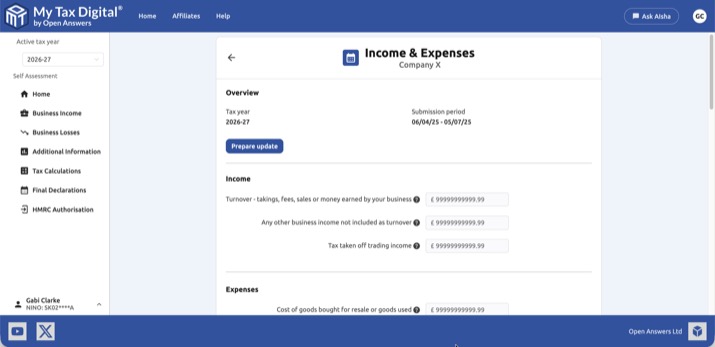
| Field | Description | SA103F |
|---|---|---|
| Turnover | Total takings, fees, sales or money earned by the business. | Box 15 |
| Any other business income not included as turnover | Other business income receipts. | Box 16 |
| Tax taken off trading income | CIS tax deductions withheld by contractors during the period. | Box 81 |
Expenses are shown below income, with a toggle indicating whether they were submitted as a Consolidated (single figure) or Granular (itemised by category) total. Granular mode also requires a disallowable amount for each category (the portion of that expense not allowable for tax purposes).
| Field | Description | SA103F | Disallowable |
|---|---|---|---|
| Cost of goods bought for resale or goods used | Cost of stock or materials used in the business. | Box 17 | Box 32 |
| Construction industry - payments to subcontractors | Payments made to subcontractors under the Construction Industry Scheme. | Box 18 | Box 33 |
| Wages, salaries and other staff costs | Employee costs including wages, salaries, and employer's National Insurance. | Box 19 | Box 34 |
| Car, van and travel expenses | Vehicle and travel costs incurred running the business. | Box 20 | Box 35 |
| Rent, rates, power and insurance costs | Property-related overhead costs for business premises. | Box 21 | Box 36 |
| Repairs and maintenance of property and equipment | Cost of maintaining and repairing business property and equipment. | Box 22 | Box 37 |
| Phone, fax, stationery and other office costs | General administrative and office costs. | Box 23 | Box 38 |
| Advertising and business entertainment costs | Marketing, advertising and client/staff entertainment expenditure, combined into one allowable figure. | Box 24 | Box 39a (advertising) / Box 39b (entertainment) |
| Interest on bank and other loans | Interest paid on business borrowing. | Box 25 | Box 40 |
| Bank, credit card and other financial charges | Bank charges, card processing fees, and similar costs. | Box 26 | Box 41 |
| Irrecoverable debts written off | Bad debts written off during the period. | Box 27 | Box 42 |
| Accountancy, legal and other professional fees | Professional service fees. | Box 28 | Box 43 |
| Depreciation and loss or profit on sale of assets | Depreciation charged and any profit or loss on disposal of assets. | Box 29 | Box 44 |
| Other business expenses | Any other allowable expenses not covered above. | Box 30 | Box 45 |
| Consolidated expenses | A single combined figure covering all allowable expenses, if your annual turnover is below £90,000. | Box 31 | - |
2.1.1 Examples of less obvious costs
Some allowable costs don't map obviously onto the category names above. As a general guide (not tax advice — confirm the right fit for your circumstances with your accountant):
- Materials, lab fees, or goods used directly in providing your service (e.g. dental lab fees, craft or trade materials): Cost of goods bought for resale or goods used (Box 17).
- Professional indemnity insurance and regulatory/trade body subscriptions (e.g. GDC, MDU, BDIA, or similar professional body fees): Accountancy, legal and other professional fees (Box 28).
- Books, trade magazines, and CPD/training courses: Other business expenses (Box 30) — there is no dedicated category for training or reading material.
- Protective clothing and uniforms: Other business expenses (Box 30) — there is no separate category for this either.
If your annual turnover is below £90,000, you can avoid mapping costs individually by using Consolidated expenses (Box 31) instead.
Click Prepare update to submit figures for the current period.
2.2 Updating Income & Expenses — Accounting mode
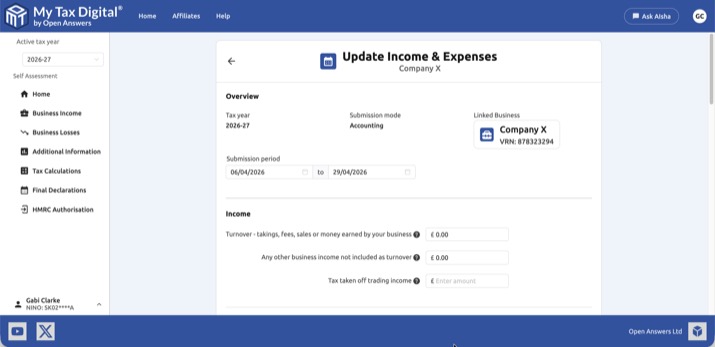
In Accounting mode, the income fields are pre-filled from your linked business transactions and expenses are always itemised by category — there is no Consolidated option in this mode, unlike Bridging. Review the figures and click Submit.
If this linked business is also used for a VAT registration, submitting a VAT return from it does not submit this quarterly update — the two draw on the same transactions but are separate submissions, each requiring its own Prepare update and Submit.
If you cannot see a Transactions tile, it is on the linked business's home screen rather than this hub — see §1 above for navigation.
2.3 Updating Income & Expenses — Bridging mode
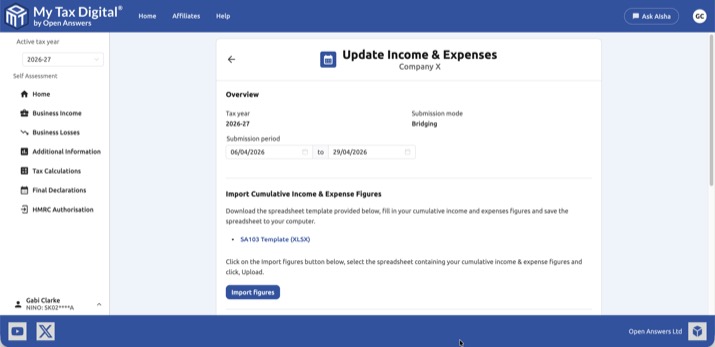
The template cells must be linked by formula to your own accounting spreadsheet or export, not retyped — this formula link is what satisfies HMRC's digital link requirement. Import cumulative figures as follows:
- Download the template below, populate your cumulative income and expense figures, and save the file.
Download example SA103 Self Employment template (XLSX)
You can also use a CSV file in place of XLSX. If using CSV, figures must appear at the same cell positions as the XLSX template.
- Click Import figures, select your completed spreadsheet or CSV, and click Upload.
- Review the imported income figures and choose Consolidated or Granular for expenses.
- Click Submit.
If you have more than one self-employment income source, each must be submitted separately using its own SA103 template — there is no combined template for multiple sources.
The income and expense fields above can also be typed into directly, without going through the spreadsheet import. This is intended for two narrow circumstances only: correcting a submission where the normal import route cannot be used, and customers who meet HMRC's published criteria for exemption from Making Tax Digital for Income Tax on digital exclusion grounds and are therefore unable to maintain a digital record via spreadsheet. It is not a general alternative to importing your figures.
2.4 Confirming a submission was received
After you submit, use the Income & Expenses card (not Obligations) to confirm HMRC received your figures — the last submission date and totals shown there are refreshed from HMRC. The Obligations card only shows a period as fulfilled once HMRC has received a submission covering the entire period through to its end date, so an early submission will still show as Open. Some customers have found their HMRC online account takes a little while to reflect a submission made through My Tax Digital — this delay is on HMRC's side and does not mean the submission failed.
If the Income & Expenses screen shows an error, or fails to load at all: this is a known, intermittent fault on HMRC's side affecting the read-back of previously submitted figures, not the submission itself. If Obligations already shows the period as fulfilled/received, your figures have reached HMRC regardless of what this screen displays. Note that Prepare update (needed to resubmit or correct the period) is not reachable from this screen while the fault is active, and there is currently no alternative route to it. Try again in a few days — if it's still not showing, or you need to submit an urgent correction before then, contact support.
About the SA103 template
The template is a compact spreadsheet covering only the income and expense fields for quarterly submissions (SA103F boxes 15 to 31). It will appear shorter than the full HMRC paper SA103F form — that is expected. Capital allowances, year-end adjustments, and the trading income allowance are entered separately in the Adjustments & Allowances section, not via the template. If your annual turnover is below £90,000, you can enter all allowable expenses as a single figure in box 31 (Consolidated expenses) rather than filling in each individual category.
Resubmitting
You can submit at any point during the quarter and resubmit as many times as needed — each submission replaces the previous one. HMRC always holds your most recently submitted figures. There is no need to wait until the quarter end; submitting early and correcting later is fine. A period showing as fulfilled does not lock it or prevent a correction — to fix a mistake, prepare and submit an update again with your corrected cumulative figures. The one rule to keep in mind: each new submission for a period must use the same end date as before, or a later one — HMRC will not accept an earlier end date.
Non-business income
Savings interest, pension contributions, dividends, and other income that does not come from the self-employment business are not submitted via the SA103 quarterly template. These are entered through the Additional Information section and submitted at year-end as part of your Final Declaration. See UK interest and Pensions and reliefs for details.
3. Adjustable Summaries
An Adjustable Summary (BSAS — Business Source Adjustable Summary) is a year-end submission to HMRC that allows you to adjust the cumulative income and expense figures already submitted for a period. It is required before your final tax calculation can be performed.
3.1 The Adjustable Summaries List
The list shows all adjustable summaries for this business, each identified by its submission period and the date it was requested.
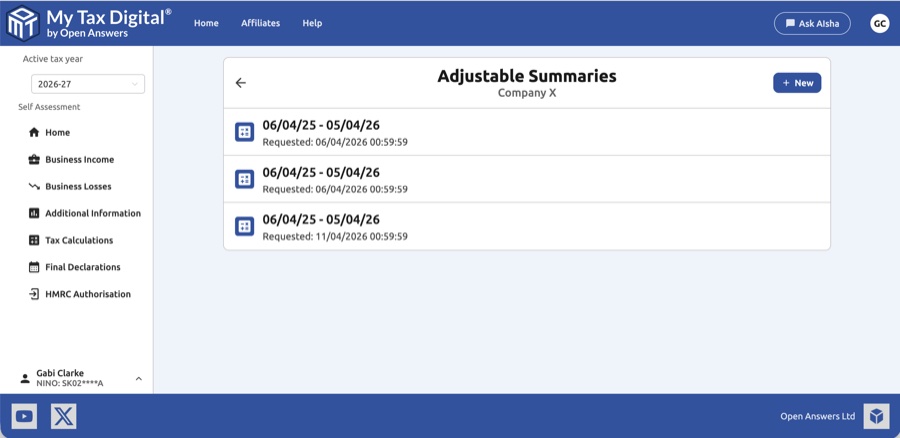
Click + New to trigger a new adjustable summary from HMRC, or click an existing entry to view or update it.
3.2 Viewing an Adjustable Summary
The view screen shows a read-only summary of the adjusted figures calculated from your submissions.
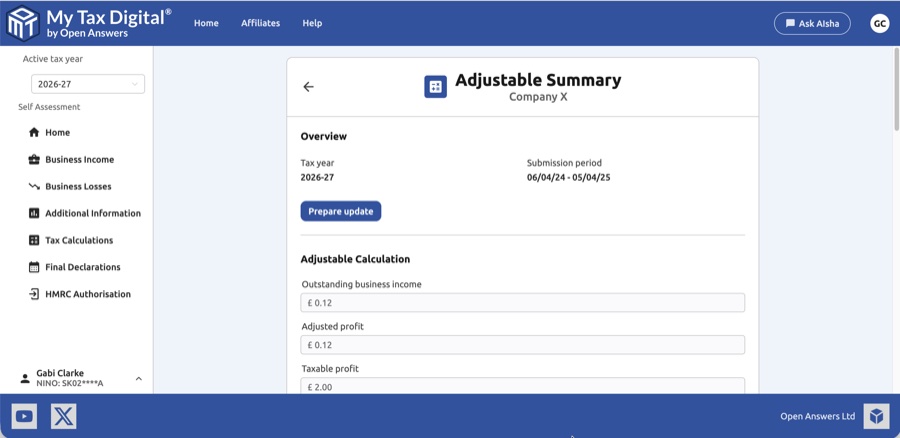
| Field | Description | SA103F |
|---|---|---|
| Outstanding business income | Other business income not included in turnover. | Box 75 |
| Adjusted profit | Net profit after all adjustments and allowances have been applied. | Box 73 |
| Taxable profit | The final taxable profit figure reported to HMRC. | Box 76 |
Click Prepare update to unlock the fields for editing.
3.3 Updating an Adjustable Summary
When updating an adjustable summary in Bridging mode, you provide the adjusted income and expense figures directly.
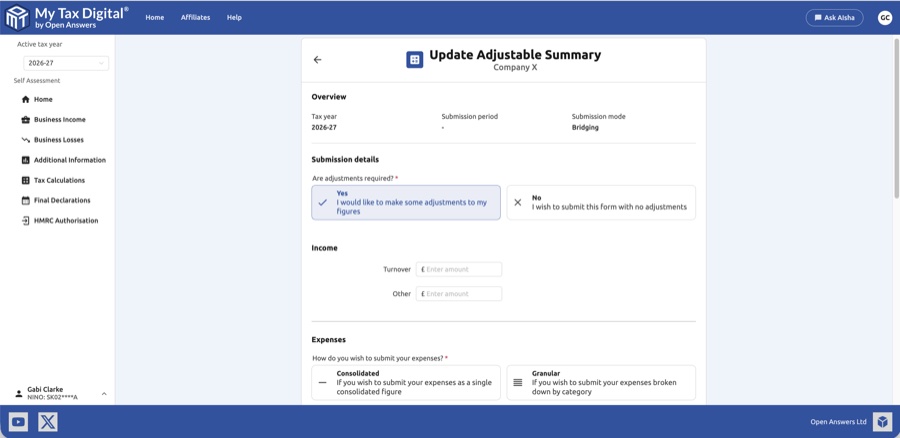
Submission details
First, indicate whether adjustments are required:
- Yes — I would like to make some adjustments to my figures: Opens the income and expenses fields for editing.
- No — I wish to submit this form with no adjustments: Submits a zero-adjustment return.
Income
| Field | Description | SA103F |
|---|---|---|
| Turnover | The total takings, fees, sales or money earned by the business. | Box 15 |
| Other | Any other business income not included in turnover. | Box 16 |
Expenses
Choose how to submit your expenses:
- Consolidated — Submit a single combined figure for all expenses.
- Granular — Submit individual expense categories. Also requires disallowable expense amounts for each category.
Granular expense categories include: Cost of goods bought for resale or goods used, Construction industry - payments to subcontractors, Wages, salaries and other staff costs, Car, van and travel expenses, Rent, rates, power and insurance costs, Repairs and maintenance of property and equipment, Phone, fax, stationery and other office costs, Advertising and business entertainment costs, Interest on bank and other loans, Bank, credit card and other financial charges, Irrecoverable debts written off, Accountancy, legal and other professional fees, Depreciation and loss or profit on sale of assets, and Other business expenses.
4. Adjustments & Allowances
The Adjustments & Allowances screen is where you record your annual capital allowances, tax adjustments, and non-financial disclosures. This corresponds to the capital allowances and adjustments sections of your SA103F (Self Employment — Full) supplementary page.
4.1 Recording asset purchases
How you record a capital asset purchase (e.g. a computer, tools, machinery) depends on your accounting method. Under cash basis (the default for most sole traders), record the purchase as an ordinary business expense in your Transactions section using an appropriate category — for example, Phone, fax, stationery and other office costs for a computer, or Car, van and travel expenses for a vehicle. The full cost is deductible in the year of payment and no entry on this screen is needed. Under traditional (accruals) accounting, the purchase goes through capital allowances rather than expenses — use the Annual investment allowance field in §4.3 to claim the full cost in the year of purchase. If you are unsure which method applies to you, your accountant can confirm. See also HMRC's guidance on cash basis accounting.
4.2 Viewing Adjustments & Allowances
The view screen shows all currently submitted allowance and adjustment figures.
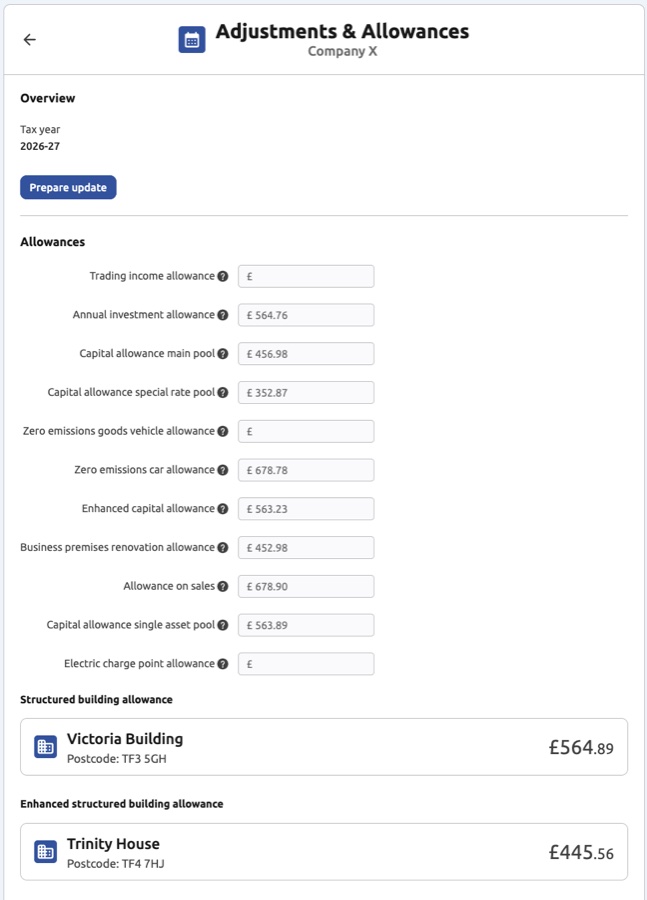
Click Prepare update to unlock editing.
4.3 Updating Allowances
The Allowances section covers capital allowances claimable for the tax year.
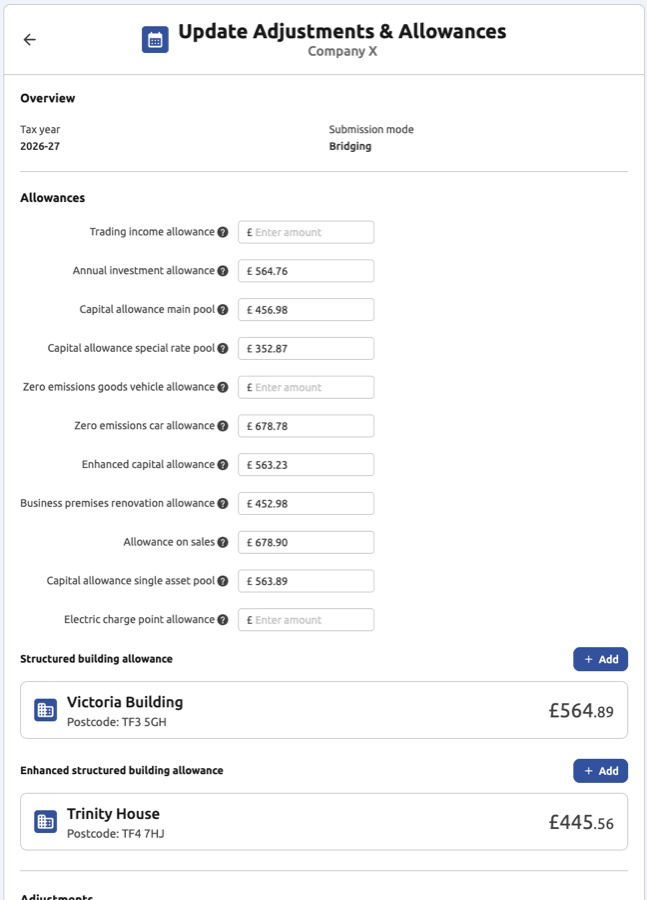
| Field | Description | SA103F |
|---|---|---|
| Trading income allowance | The £1,000 trading income allowance, if claimed instead of actual expenses. | Box 16.1 |
| Annual investment allowance | 100% first-year allowance on qualifying plant and machinery. | Box 49 |
| Capital allowance main pool | Allowances at 18% on plant and machinery in the main pool. | Box 50 |
| Capital allowance special rate pool | Allowances at 6% on assets in the special rate pool (e.g. integral features, high-emission cars). | Box 51 |
| Zero emissions goods vehicle allowance | 100% allowance on new zero-emission goods vehicles. | Box 52 |
| Zero emissions car allowance | 100% first-year allowance on new zero-emission cars. | Box 52.1 |
| Enhanced capital allowance | Other 100% and enhanced first-year allowances. | Box 55 |
| Business premises renovation allowance | Allowance for the renovation of qualifying business premises. | Box 55 |
| Allowance on sales | Allowances arising on the sale or cessation of business use of an asset. | Box 56 |
| Capital allowance single asset pool | Allowances on assets held in a single-asset pool (e.g. certain cars). | Box 50/51 |
| Electric charge-point allowance | 100% first-year allowance on new electric vehicle charging equipment. | Box 54 |
Structured Building Allowances (SBAs)
SBAs are listed separately below the standard allowances. Each entry shows the building name, postcode, and allowance amount. Click + Add to add a new SBA, or click an existing entry to edit it.
Enhanced Structured Building Allowances
A separate section lists Enhanced SBAs (for Freeport and Investment Zone structures). These follow the same format as standard SBAs.
4.4 Adding or Editing a Structured Building Allowance Item
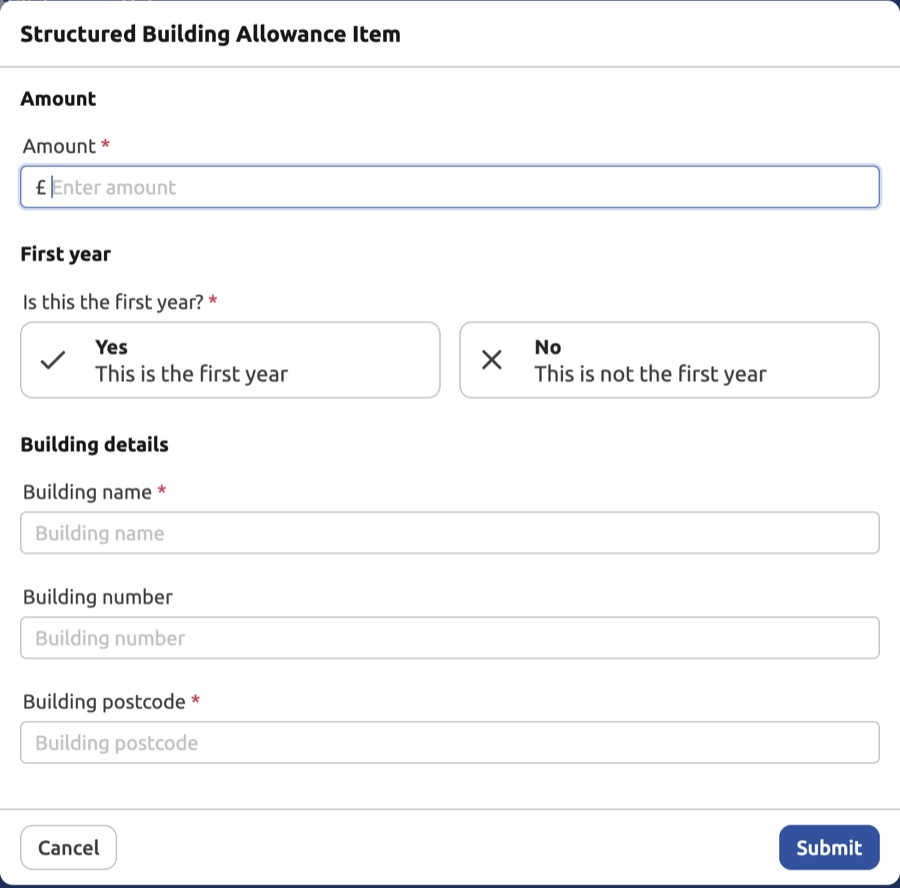
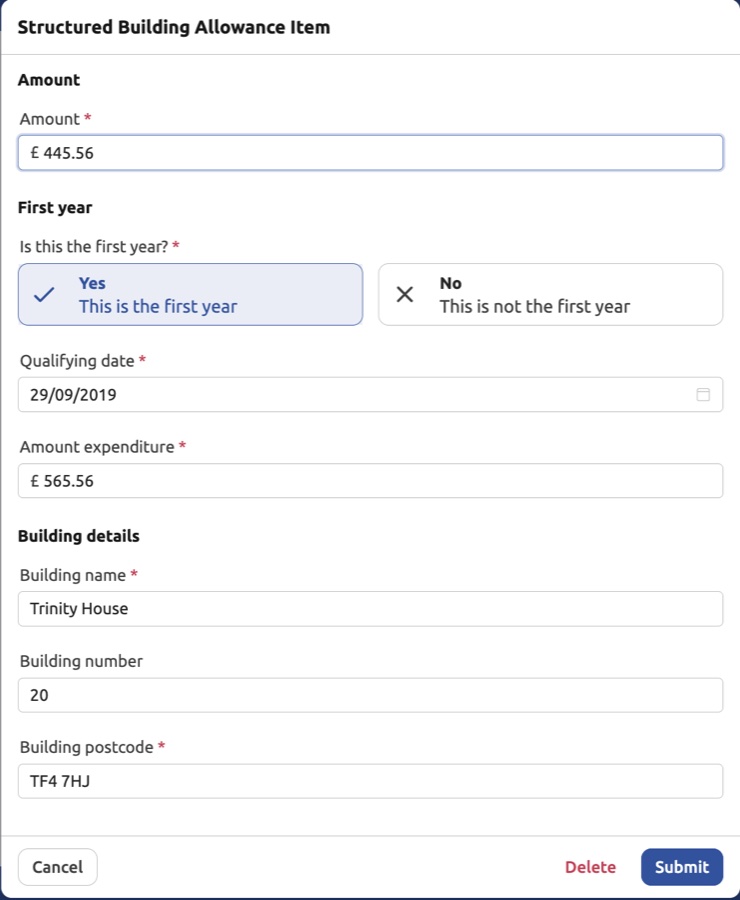
| Field | Description | SA103F |
|---|---|---|
| Amount | The SBA amount being claimed for this tax year. | Box 53 |
| Is this the first year? | Select Yes if this is the first year the allowance is being claimed for this building. | - |
| Qualifying date | The date the building first came into qualifying use (only shown when first year = Yes). | - |
| Amount expenditure | The total qualifying expenditure on the building (only shown when first year = Yes). | - |
| Building name | The name of the building. | - |
| Building number | The building number (optional). | - |
| Building postcode | The postcode of the building. | - |
Click Delete to remove an existing SBA entry.
4.5 Updating Adjustments
The Adjustments section covers year-end profit adjustments.
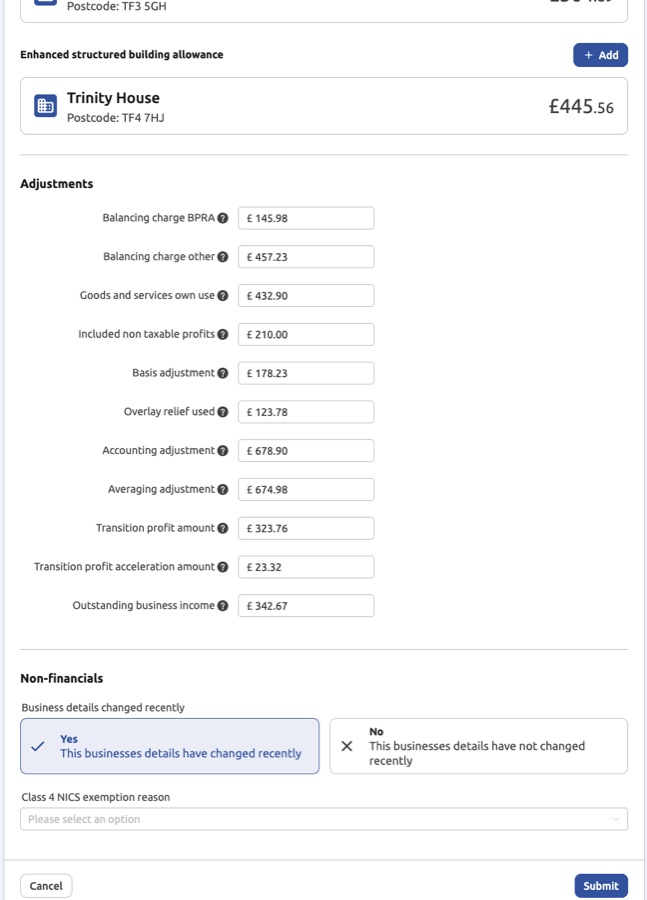
| Field | Description | SA103F |
|---|---|---|
| Balancing charge BPRA | Balancing charge arising on Business Premises Renovation Allowance. | Box 59 |
| Balancing charge other | Other balancing charges on the sale or cessation of use of assets. | Box 59 |
| Goods and services own use | The value of goods or services taken from the business for personal use. | Box 60 |
| Included non-taxable profits | Income included in your accounts that is not taxable as business profit and should be deducted. | Box 62 |
| Basis adjustment | Adjustment where the accounting period ended before 31 March or was not 12 months long. | Box 68 |
| Accounting adjustment | Adjustment for a change of accounting practice (e.g. moving from cash to accruals basis). | Box 71 |
| Averaging adjustment | Applies only to farmers, market gardeners, and creators of literary or artistic works. | Box 72 |
| Transition profit amount | The amount of transition profit arising in this tax year from the basis period reform. | Box 73.3 |
| Transition profit acceleration amount | Any additional transition profit brought forward under an election to accelerate. | Box 73.3 |
| Outstanding business income | Any other business income not already included in your income or expense submissions. | Box 75 |
Non-financials
| Field | Description |
|---|---|
| Has business details changed recently? | Indicate whether the business details (e.g. name, address, nature of trade) have changed during the tax year. |
| Case 4 NCS exemption reason | If you are claiming an exemption from the National Insurance Class 4 contributions charge, enter the reason here. |
5. Periods of Account
Periods of Account vs Quarterly period type — these are two separate settings:
Quarterly period type (Standard or Calendar) — controls which quarterly date ranges HMRC uses for your submissions. Standard follows tax year quarters (6 Apr–5 Jul, etc.); Calendar follows calendar quarters (1 Apr–30 Jun, etc.). Choose Calendar if HMRC has advised you to align your quarterly submissions with your VAT quarters. This setting is in the income source settings under Accounting period — Period type, and can only be changed before any submissions have been made for the current year.
Periods of Account (this section) — declares your annual accounting year-end dates to HMRC. Only relevant if your business accounts run to a date other than 31 March or 5 April.
If HMRC has told you to "align with VAT quarters", you need Period type → Calendar, not this screen.
A period of account is the 12-month window a business uses to prepare its annual accounts — for example, 1 January to 31 December, or 6 April to 5 April.
Most self-employed businesses use the standard tax year (6 April to 5 April, or with an accounting date of 31 March which HMRC treats as equivalent). If your accounts run to 31 March or 5 April you can answer No to the "Does this business have periods of account?" question — HMRC already knows your period aligns with the tax year.
Businesses with a different year-end — for example, accounts running to 31 December or 30 September — need to declare their specific accounting period dates. This became important following HMRC's basis period reform (from tax year 2024-25 onwards), which changed the rules so that all self-employed businesses are taxed on profits arising within the tax year itself (6 April to 5 April), regardless of when their accounts end. To calculate the correct apportioned profit, HMRC needs to know the exact start and end dates of your accounting period.
HMRC requires this information to be on record before an Intent to Finalise calculation can be submitted. Use this screen to submit or update your periods of account.
For further background, see HMRC's MTD ITSA service guide — Basis period reform: Capture Period of Account.
5.1 The Periods of Account Screen
The overview shows whether periods have been submitted for the current tax year.
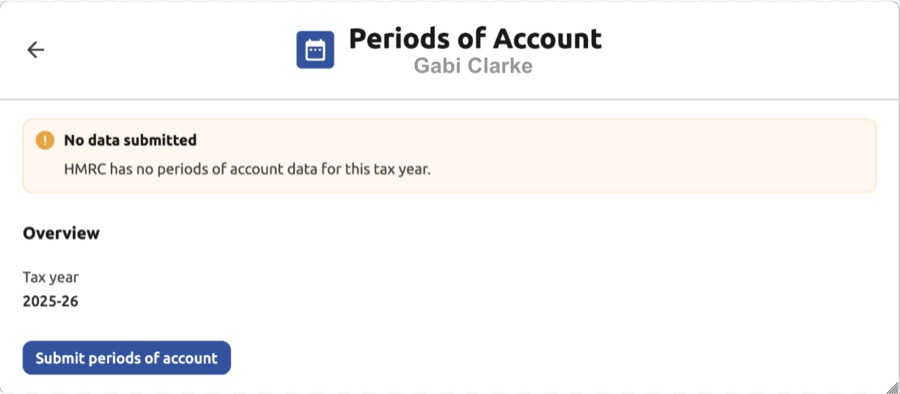
- If no data has been submitted to HMRC yet, a No data submitted notice is shown.
- Click Submit periods of account to open the submission form.
5.2 Submitting Periods of Account
The submission form asks whether this business has periods of account with specific start and end dates.
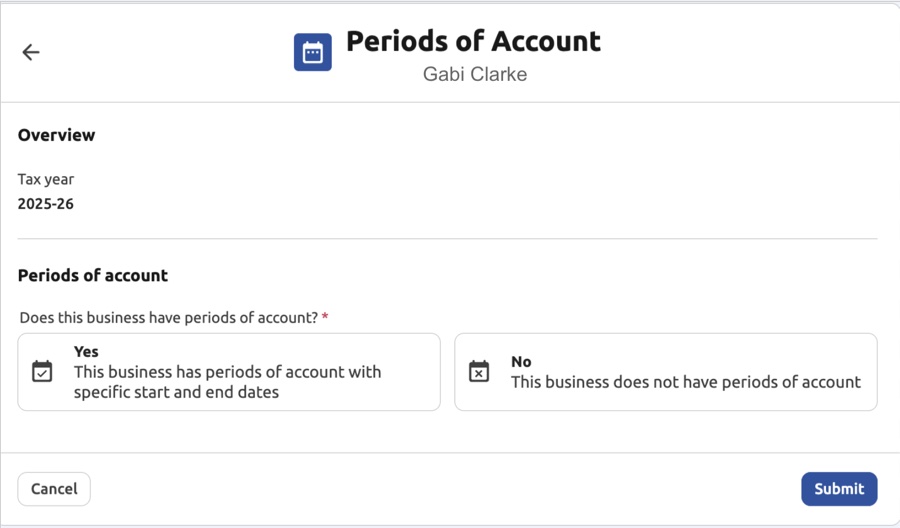
| Option | Description |
|---|---|
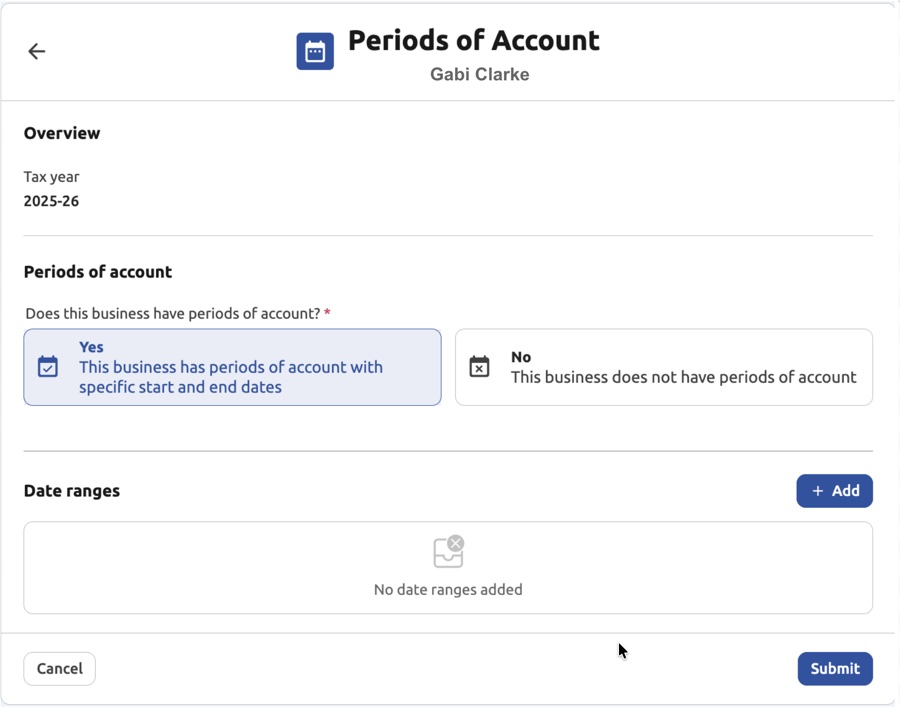
| Yes | The business has periods of account with specific start and end dates. You must add at least one date range. |
| No | The business does not have periods of account. |
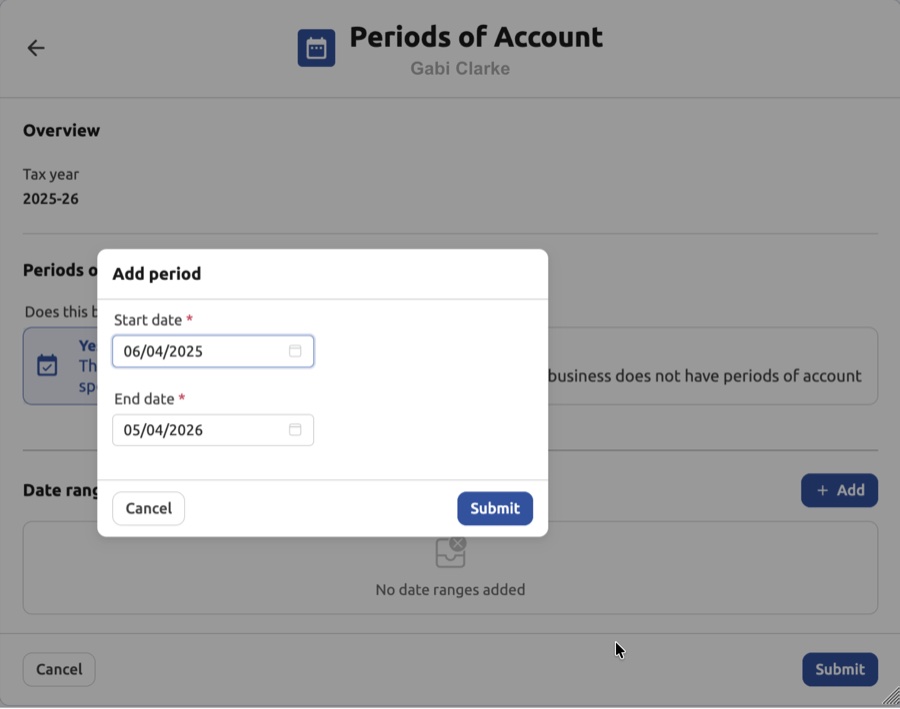
Select Yes to reveal the Date ranges section, then click + Add to enter a period:
| Field | Description |
|---|---|
| Start date | The first day of the accounting period. |
| End date | The last day of the accounting period. |
Click Submit in the modal to save the date range, then click Submit on the main form to send the periods to HMRC.
Select No if the business does not use specific accounting periods:
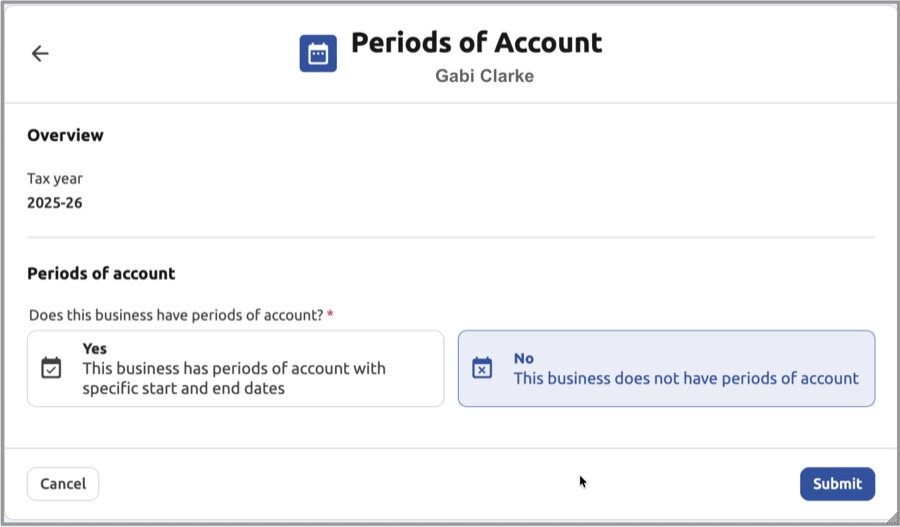
Click Submit to confirm.
After the tax year ends, the period type selection is shown as read-only. The selected option remains visible so you can see what was configured, but it cannot be changed — HMRC does not accept period type changes for a completed tax year.